The Recurring WebSphere Bug And Connections External Users

I wanted to share a recurring WebSphere bug that I noticed over a year ago because although it was irritating then, if it occurs now it can actually prevent you from deploying Connections external users the way you want.

Here’s the scenario (and it’s fairly common for me).

IBM Connections 5 CR2 on WebSphere 8.5.5 FP3

Primary LDAP is a Domino server

Secondary LDAP for external users is a separate Domino server in an isolated domain

When we want external users to access our Connections environment, the most secure approach is to have a dedicated LDAP server or branch for external users to appear in.  Especially if (as we do) you have a self registration / password reset process for those users.  The problem occurs because we want to use Domino as our LDAP.  LDAP servers other than Domino are built with hierarchical entries so on the WebSphere configuration screen where we are asked for the “unique distinguished name of base entries” that’s very easy, we just select the top level of the hierarchy.  Unfortunately in Domino LDAP we don’t always have a hierarchy – we have flat names and we have flat groups so if we try and use a O= xx value – those names and groups aren’t picked up.

We used to use C=US which would trick WebSphere into querying a level above O= and that would work but since WebSphere 7.0.0.23 we have been using the word “root” which validates both flat names and all hierarchies on the server.

So far so great.

Now we want to add another LDAP server which will be a Domino server where people will register.  We’ll have two TDI processes one connecting to the internal Domino server for internal users and another to the external Domino server for external user access.  It’s Domino so we want to use “root” as our base entry but since WebSphere requires all federated repositories to have unique base entries and since we already use “root” for our internal server, I have to fake a hierarchy for external users just so I can add the 2nd LDAP.  It’s ugly but not unworkable.  It’s also not our problem.

BaseEntries


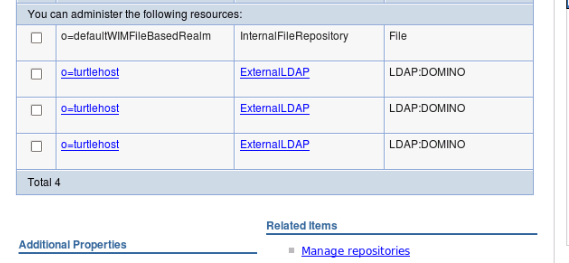
The problem is that once I add the second Domino server or even a third.  My federated repositories in WebSphere look like this
repositories

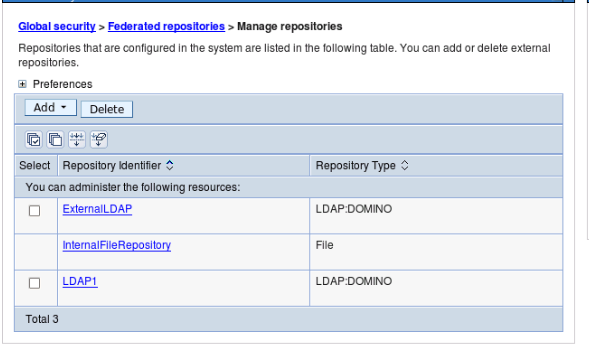
Can you see what’s wrong?  That table reads from the underlying wimconfig.xml file found under the Deployment Manager profile /config/cells/<cellname>/wim/config.  That wimconfig.xml is fine which is why if I click on Manage Repositories they are all there.  I just can’t edit them from this screen, I can only edit from the previous screen and that one links to the last LDAP entry I added.
managerepositories

So that’s part of our problem.  It’s been there for a few years but since we could manually edit the wimconfig.xml to overwrite settings it was workable.  This is caused by the “root” base entry on the first LDAP.  That word “root” translates to an empty baseentries name= value in wimconfig.

Here’s the internal LDAP with baseEntries name=””

wimconfigroot

Here’s the external LDAP where I have defined a base entry of o=turtlehost

wimconfigexternal


The additional side effect of this bug (and I’m not sure we can call it a WebSphere bug since expecting hierarchical LDAP is a fairly standard thing) is that in the latest version of WebSphere, it refused to search the second external directory.  No error. Nothing.  Just refused to search it which meant those users couldn’t login.

I edited wimconfig.xml and added a O=Turtle to replace the baseentries name=”” etc and that fixed both the WebSphere view and the ability of users to login.

So where does that leave us.  Well it’s a problem because I want to use Domino. I don’t want to have to force a single hierarchy.  C=xx doesn’t work anymore to trick WebSphere.  “root” breaks both WebSphere and authentication.  That means I can’t have a secondary Domino server for external users and still use a “root” base entry for the internal server.  Without that “root” value, the flat Domino groups will be ignored.

That leaves me with a few options

1. Force a fake hierarchy on groups so I can have a base entry value that works and not use root

2. Use Directory Assistance and “root” but that allows external users to authenticate against my internal directory.  I don’t like that

3. Use an LDAP attribute to separate external from internal users instead of a dedicated LDAP server.  For security reasons i’m no fan of that either

4. Don’t use Domino for both LDAPs, only for one of them.  One “root” defined Domino server will work fine


New Sessions At Social Connections

Here I am at Heathrow heading out to Boston for Social Connections this week.  Held at IBMs Research Centre in Boston Social Connections is focussed around IBM Connections (what else!) software with most sessions lasting only 30 minutes.  That’s a tough trick to pull off in a technical session but I’m taking it as a challenge to get my information across in so short a time.  I’ll be there on Thursday all day and presenting with Terri Warren from IBM on “Who Does Connections Think I Am?” At 4.55pm where we’ll dig into how your identity and directories work.  On Friday I have two sessions – one of 30 minutes on being a Connections Administrator at 12pm and a high speed 15 minute session at 1.30 on Design and how to choose what servers, features and add-ons you’ll need. 

So three entirely new sessions I hope you’ll enjoy – see you there!

Upgrading Filenet – Something To Watch Out For

Last night I was working on a Connections CR2 upgrade that included upgrading Filenet.    I was using this very nice piece of documentation from IBM on a lab walkthrough of upgrading to CR2 here .  To date my biggest problem with FileNet has been finding all the files needed and that’s especially true of the CR2 update files but I got there.  What tripped me up was upgrading the CE Client and FNCS (section 3.4.5 on the document).  The sample command is

update-fncs-ceclient.bat -was.dm.path “C:\IBM\WebSphere\AppServer\profiles\Dmgr01” – was.admin.user wasadmin -was.admin.password Passw0rd -fncs.fp.installer.location “c:\Downloads\FNCR2\IBM_CONTENT_NAVIGATOR-2.0.3.2-FP002- WIN.exe” -doInstallFNCS y -ceclient.fp.installer.location “C:Downloads\FNCR2\Filenet cr2\5.2.1-P8CPE-CLIENT-WIN.EXE” – doInstallCEClient y

The problem is that this script ran for about 6 minutes then bombed out.  I checked the fn-fncs-ceclient-update.log file in c:\ibm\connections\ccm\ccm\ccm\scripts (where the script is run from) and it showed a failure to make a SOAP connection (after it had already successfully made one earlier in the script).  I then checked wsadmin.traceout in the Dmgr profile under logs and saw references to “WASX7198W websphere The configuration service is not running” and other failures logging in like “empty credentials”.

OK so the problem was my login credentials used in the script for admin account and password right? Wrong.  Because that works fine earlier in the script. In fact the first thing it does is make a SOAP connection to the Dmgr server.  OK.  So the problem is that my password for the admin account contained a ! – we all know that WAS doesn’t like encoding and decoding special characters right?  Wrong. I tried another account, and another,  I tried wasadmin but that failed (and I wondered if that was because it was a FileNet update and FileNet wants an LDAP account).  At this point i’m bouncing between accounts trying to get this working.  I get the customer to remove the ! and give me a password with no special characters.  Still no luck.

Then I think a bit more.  What if the script isn’t using the values I gave it to run but instead is assuming they are already there in soap.client.props and is attempting to read them from that file. I go to check soap.client.props under Dmgr\properties and there is no value stored there at all.  I add my admin credentials in there and the script runs perfectly.

Today’s lesson is don’t assume a script you are running is using the credentials you give it!


Searching For The Elusive 5.2.0-P8CE-WIN.EXE

In this month’s adventures of Connections installs I offer you my search for a required Filenet installer.  If you’re installing CCM there are 4 files you need to have in a directory for the Connections install to complete – from the install instructions here and shown below .  I’ve done this lots of times and you basically put the executables together in one directory you can point to during the Connections install.

Filenet Install Files

However with CR2 came a requirement to update the installers see here and below

CR2 Requirements

Notice the difference?  CR2 doesn’t list the 5.2.0-P8CE-WIN (LINUX, AIX , ZLINUX) file at all as a required update.  That means that all the other files are in Fixcentral but not that one.  So I want the latest file and I don’t know if there’s a newer one.  I go to Fix Central and search for 5.2.0-P8CE and get offered the 5.2.0.3-P8CP8 files.  I try to search for a download list for IBM Connections Content Manager but it doesn’t exist (I like the download lists because they often have the latest part numbers).  There is one for IBM Connections but that doesn’t include any of the FileNet components.

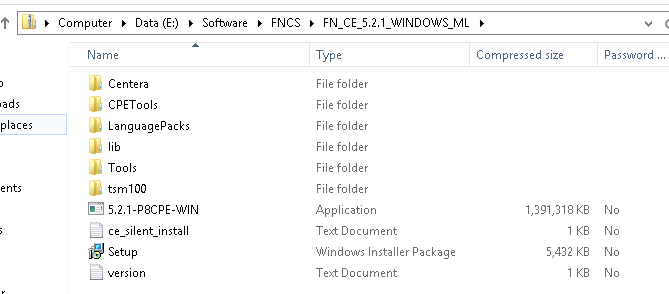
Off I go to Partnerworld where I type in IBM Connections Content Manager and I get an eAssembly to go through including the file FN_CE_5.2.1_WINDOWS_ML which sounded hopeful but I already had that and it contains the following. Note 5.2.1-P8CPE-WIN not P8CE.  The 5.2.0 files were no longer showing on Partnerworld under Connections Content Manager

FN_CE_5.2.1_WINDOWS_ML


Luckily I’m a paranoid control freak and have backups of all the installers myself and there I found the original FN_CE_5.2_WINDOWS_ML file which, when download and extracted had the correct 5.2.0-P8CE-WIN file in it.  The one the Connections installer wanted and refused to progress without.

FN_CE_5.2.1_WINDOWS_ML


The sizes of the zip files should have made me suspicious.  It does look like the 5.2.1 zip file in partnerworld has the wrong content (possibly because there isn’t a 5.2.1 for P8CE only for P8CPE) and i’m not the only one who goes cross eyed staring at P8CE vs P8CPE.   Or maybe I’ve been staring at this too long. Either way thanks to my backup I’m sorted now.

Zip File Sizes

My Caffeinated Sessions At Social Connections

I’m delighted to say that I will be speaking at Social Connections in Boston this April.  It’s a great conference entirely about all aspects of Social Software and IBM Connections.  I like to try something different so I asked for 30 minute slots for my technical sessions this year

Staying On Top Of Connections Administration

From SSL certificates to setting up application security and rebuilding searches, we’ll cover how to identify the most common problems and resolve them quickly.

To do this we’ll also discuss how to set up logging and review both IHS and WAS logs and the key information you’ll need to supply IBM when opening any PMR (and where to find it).

I then have a session on Connections identities and LDAP with Terri Warren called

Who Does Connections Think I Am?

and one on designing a Connections environment – this one is only 15 minutes long.  You can give up 15 minutes to hear how to plan your Connections environment can’t you?

Connections Design From The Bottom Up

To see the full agenda for Social Connections or better yet, to register, click here

See you there!

Installing CR2 for IBM Connections 5

IBM have just released IBM Connections 5 CR2.  And by “just” I of course mean I haven’t had time to install it myself yet but let’s look at what’s going to be needed. Amongst the fixes there are a few new features that improve the use of CCM Libraries with Connections 5 utilising IBM Docs 1.0.7 (also released today).  For example you will now be able to edit Library files in IBM Docs without leaving Connections.  More details of those features here

The landing page for installing CR2 is here and includes a link to the update strategy document and a PDF with example instructions for updating a single server Windows environment.

You don’t have to upgrade to CR1 before going to CR2 but there are required database updates in CR1 you will still need to deploy on your way to CR2.  I’ve linked to them here so you don’t forget them.

I’ll be installing this week in my test environment but I won’t be looking to install for any customer in production for a few weeks.

CR1 Database Updates

CR2 Database Updates

CR2 Cognos Wizard

Filenet Updates (CR2 uses different Filenet versions from CR1 so don’t deploy the CR1 versions if you are moving directly from 5.0 to CR2)


My Connections Migration Checklist

I’ve been doing a lot of Connections upgrades and migrations in the past few months and since I prefer to do a side-by-side upgrade there are lots of steps along the way to make sure the data is moved and upgraded from the existing servers to the new servers.  The documentation on how to do this in the Knowledge Center is good but there’s a lot of jumping around all over the place between tasks and I have found it helpful for me to have a checklist to make sure I don’t miss anything.

Here’s the checklist I’m using right now with some explanation and links to the documents in the Knowledge Center for each.  My steps aren’t  in the same order as in the documentation but they are the order I use

In theory the migration shouldn’t make changes to your production servers, but I’m risk averse and it’s worth the extra few minutes to make sure you can back out of the migration should you need to.

Before starting anything you should have created new empty databases on your new system using the scripts / wizard from the version you are moving from.  Even if you are moving to Connections 5 from Connections 4, you will need to use the Database wizard for Connections 4 to create the databases we are going to move data into.   That makes sense when you consider we are going to transfer the data over from the existing production environment so the format / structure and schema must be identical from source to target.

Begin by stopping everything, all WAS servers and DB2 (or SQL, Oracle) in your production environment as well as any TDI assemblylines you may have running.  The data migration requires the production site to be down and stay down until the new site comes up, that could be anywhere from a day to 3 days depending on how big your environment is and how much data you have as well as the connectivity between old and new environments when transferring the data.

Now let’s back everything up – just get the existing production configuration data somewhere you can access it and make sure you don’t lose any data during migration so backup all the DB2 databases as well as the Connections shared data /Connections/data.. /shared (I personally like to backup /Connections/data which gets local as well but that’s just me.

  • Backup Connections Dmgr Profile by running backupconfig.bat /.sh from the /Dmgr01/bin directory.  This will stop the Dmgr server if it’s not already stopped or if you don’t use the -NoStop parameter. (no need to backup Installation Manager when doing a side by side migration)
  • Backup the Connections shared data
  • Backup customisations somewhere you can access them for reading and manual copying over to the new environment
  • Run the migration.bat / sh to export the Connections configuration data ready for import in your new environment.  This includes the LotusConnections-Config.xml and application specific data.  This is exported to a directory you then copy to your new environment where you can import it
  • Migrate each of the databases, one at a time.  Each one has a pre-script to run to prepare the database, then at least 2 migration scripts, one to move the data and one to clear the scheduler entries on each database.   All the instructions are here however there are a couple of things to bear in mind.

When running the scripts I like to add >filename to the end of each command to pipe the output to a log file.  I usually create a “Logs” directory and call the file by the name of the script _app name e.g predb_blogs.txt.  This way I can check if the scripts ran OK by reading the logs and I have something to send to IBM if it comes down to opening a PMR

See my earlier blog for potential syntax issues running the scripts

To run dbt.jar which migrates the data you create an XML file and a matching Batch file for each application.  I like to create all of these at once and add them to a directory from which I can run for each application (again with the >logfile at the end).  Below are examples of XML and batch files I modify to use (I’ve avoided putting in carriage returns as that messes things up should you copy out of here)

XML (e.g. files.xml below)
<dbTransfer xmlns:xsi=”http://www.w3.org/2001/XMLSchema-instance“><database role=”source” driver=”com.ibm.db2.jcc.DB2Driver” url=“jdbc:db2://sourcedbserverhost:50000/FILES” userId=“db2admin” schema=“FILES” dbType=“DB2”/> <database role=”target” driver=”com.ibm.db2.jcc.DB2Driver” url=”jdbc:db2://targetdbserverhost:50000/FILES” userId=“db2admin” schema=“FILES dbType=“DB2”/> </dbTransfer>

BATCH (calls files.xml)
“e:\install\connections\wizards\jvm\win\jre\bin\java” -cp e:\dbt_home\dbt.jar;e:\ibm\sqllib\java\db2jcc.jar;e:\ibm\sqllib\java\db2jcc_license_cu.jar com.ibm.wps.config.db.transfer.CmdLineTransfer -logDir e:\dbt_home\logs -xmlfile e:\dbt_home\files.xml -sourcepassword typedb2passwordhere -targetpassword typedb2passwordhere

  • Upgrade database schemas.  Once all the migrations scripts have been run (don’t forget the clearScheduler and run/updateStats where needed) you can proceed to upgrade the databases.  I like to back them up one more time before running the upgrade though, but that’s just me.  If it took a day or more to migrate the data I don’t want to do that all again.There are two ways to update the databases on your new target server.  Either using the provided (Connections 5) database wizard and choosing “Upgrade” or by running manual scripts.  I prefer to run the scripts manually so I can see what’s going on and IBM recommend that for the Homepage at least you run the script manually rather than use the Wizard.

    Instructions for doing both Wizard and Manual methods are here .  The biggest issue with running the scripts manually is that there are slightly different syntaxes depending on which version you are coming from and it’s fiddly getting the right one, I still prefer it although  I have used the Wizard for several of the applications and it has worked fine.

  • Once you’ve upgraded all the databases, the Homepage requires another step and that’s to do a java migration of its data. This ensures the format and content of each individual’s homepage matches that required for Connections 5.  The Homepage database is by far the largest of all those used and this could take significant time.  Below is an example of the command I run (again I have taken out carriage returns and invalid quotes etc

e:\install\connections\wizards\jvm\win\jre\bin\java -Dfile.encoding=UTF-8 -Xmx1024m -classpath e:\ibm\sqllib\java\db2jcc.jar;e:\ibm\sqllib\java\db2jcc_license_cu.jar;e:\install\connections\wizards\lib\lic.dbmigration.default.jar;e:\install\connections\wizards\lib\commons-logging-1.0.4.jar;e:\install\connections\wizards\lib\news.common.jar;e:\install\connections\wizards\lib\news.migrate.jar com.ibm.lconn.news.migration.next50.NewsMigrationFrom45to50 -dbur1 jdbc://db2://targetdb2hostname:50000/HOMEPAGE -dbuser db2admin -dbpassword targetdb2password >java.out.log 2>&1

  • Importing artifacts.  Using the directory and contents created earlier one when we exported the Connections artifacts, we can now import them into our new Connections environment.  We’re basically doing the reverse of what we did to export but this time running migration.bat /sh lc-import.
  • CommunitiesMemberService.syncMemberExtIdByLogin(“wasadmin”)
  • Migrate or Rebuild the search index.  Migrating can be done if the source version is 4.5 because the search index structure is the same however I prefer to rebuild cleanly if I have the time
  • FilesDataIntegrityService.syncAllCommunityShares()
  • Custom profiles. If you have custom profile settings (strings, languages, profile types) in your existing environment and that is 4.0 these will need to be migrated / converted to the Connections 5 format.  There are also settings that should have come over when restoring your artifacts that it is worth validating

The items below tend to be optional depending on what is installed in your current environment but if these elements exist currently they will need to be migrated too

Cognos

Connections Content Manager

Media Gallery

That’s my list anyway.  Obviously the Knowledge Center is the definitive source for all you installation / documentation needs 🙂


Getting Around Documentation Errors With Connections Scripts

I’ve been meaning to write this blog for a while.  And by “a while” I mean since v4 of Connections.  IBM supply a series of scripts with the Connections install that are found in the install directory under the folder connnections.sql.  These scripts are used for a variety of things but most people will have to use them if migrating from an earlier version of Connections to a new one.  The scripts are under the database type folder for each application so the scripts for the Blogs database on DB is in

/connections.sql/blogs/db2

Now you can put those scripts where you want obviously, but that’s where you will find them.  In that folder there are lots of files that are basically a series of SQL commands written out for you.  Each command line terminates with a ; or a @ to identify that’s the end of the command.  When running these commands with db2 you use a different syntax depending on whether the SQL file ends each line in a ; or @.  For example

;  means our command line is written as “db2 – tvf {filename} >{writetoalogfile} “

@ means our command line is written as “db2 -td@ -vf {filename} >{writetologfile}”

Writing to a log file isn’t compulsory but I always do so I can check if the script ran OK.

The problem is that on the  IBM Documentation site they often give the wrong syntax for each database (oh and they aren’t consistent) so on this page the instructions for the profiles database are

“db2 -tvf predbxferxx.sql”

If you run that (and the clue is it takes less than a second which is suspicious) you will see no errors but if you check your log you will see a single line saying

“End of file reached while reading the command”

That basically means we used the wrong line terminator, we told it -tvf so it looked for a ; at the end of each line but if we open the predbxfer45.sql we can see each line ends in @.  If we change the command to

“db2 -td@ -vf predbxfer45.sql”

it runs perfectly.

It would be nice if the IBM documentation was correct but it’s a simple problem to catch and fix.

One Dumb And Two Smart Things – Calling That A Win

Last night / yesterday afternoon I was building a Connections server (for an internal project) when I wiped out hours of work doing something dumb.  I had spent some time downloading all the software and fixes to the server which was Windows 2008 R2 (because I have plenty of licensing for that)  and then I installed DB2 and WAS and created the WAS profile.  Next step was to run dbwizard.bat to create the databases but that’s where weird stuff started happening.  The dumb bit had already occurred I just hadn’t noticed it yet…..

The DBWizard would launch and let me move past the first screen but no amount of clicking on “Next” would let me move off the “Create, Edit, Update” screen.  Clicking ‘Back” actually took me to the next screen (!) but I couldn’t get any further than that.  I refused to believe it could be a DB2 problem because at the point in the Wizard it had no idea I was running DB2 as I hadn’t chosen my database platform because I couldn’t get to that screen.  I started from the assumption that since DBWizard is a java program my version of Java (brand shiny new updated yesterday) was incompatible.  So cue much time spent uninstalling and installing different java versions to try and fix it with no luck.  I could have run DBWizard from another machine but I wanted to fix whatever the underlying problem was.  Then I realised the dumb bit, I had installed 32bit DB2 on a 64bit platform which DB2 is fine with but the DBWizard really isn’t.  I don’t know if that was my problem (I still can’t believe on the early DBWizard screen it even knows to check) but in my attempts to fix uninstall and cleanup DB2 , I corrupted the Windows registry.  At least that’s what I think I did because on restart Windows would only boot to a grey branded screen with no login, even if I chose one of  the Safe modes or tried booting from a CD.

Since this work was about installing Connections and not fixing Windows I decided not to waste more time on it and startover.  Here come the two smart things.

1. I have a pre built Windows 2008 R2 VM disk with a 40GB C drive I use to clone and make new VMs.

2. I had downloaded and installed everything to a separate 100GB virtual disk

I detached the virtual disk from the broken VM

deleted that VM from the host entirely

made a copy of my simple VM disk

created a new virtual machine using that copy as its disk

added the 100GB virtual disk to that new VM

opened it up and changed its ip to match that of the VM I just deleted

and I was back in business.  Total time elapsed about 7 minutes

Of course I now had a D drive with software on it the Windows registry new nothing about but it was simple to just delete those installer folders and reinstall (the right) DB2, WAS etc and get back on track.  Certainly much simpler than trying to fix a broken Windows server!

Adding External Users To Connections 5

Last week I did a presentation at Icon UK on the new Connections 5 feature that allows you to add external users into your Connections environment.  To write the presentation I built my own environment multiple times using different techniques for adding external users and discovered some interesting stuff along the way.  Since the presentation doesn’t have my commentary on it i’ll try and summarise that here

1. On page 6 are a list of things an external user can do according to IBM documentation.  Some of the items on that page (in italics) actually didn’t, in any of my testing, work.  This is because there are conflicting security limitations on what a user can’t do (see items in bold on page 7)

So for example although the documentation states that an external user can share files with people or communities, it also states that they can’t use type ahead or directory lookups.  Preventing type ahead and directory lookups actually disables the ability to share files with a user since there’s no way to lookup a user.  Sharing files with a Community works fine.

2. The external users can be added via an LDAP attribute from your LDAP server or by a separate LDAP server or branch.  Although an entirely separate LDAP server is more secure and in my opinion preferable, it must use a search base which means flat names in Domino can’t be part of the external LDAP source.

To counteract this in one instance I faked a hierarchy as the users were created (using a simple Xpages app to allow people to self register and manage their own passwords and setting a fake hierarchical name for them in the background).  In the other instance I used the same LDAP source as for internal users but with a specific attribute set to the word “external”

In general the external users feature has been locked down securely enough that i’d highly recommend it for inviting people to work with your Connections communities .