More IBM Docs Fun And Games

…a few more notes from my latest IBM Docs install.  Previous installs including in test at this customer proceeded with no problems but this one presented several challenges so I’m sharing them here in case anyone else has the same.  Firstly since there’s a Windows machine involved let’s rule out the biggest possible issues

1. Make sure Windows is activated. Microsoft does restrict behaviour and performance in non activated Windows. No I don’t have proof I just have solid evidence of that behaviour.  Activating Windows often makes the pain go away

2. Make sure you disable the Windows local firewall.  Even if you can only do so during the install.  The server is going to have to talk to – and be talked to – the deployment manager at least and with Windows firewall enabled your install will fail

3. Make sure every server can ping every other server, even itself. And using an IPV4 not IPV6 routable address

4. Disable UAC.  PLEASE.  In Windows 2012 that’s a registry hack where you set EnableLUA to 0 under “HKEY_LOCAL_MACHINE\SOFTWARE\Microsoft\Windows\CurrentVersion\policies\system”

So now we’re ready to install.  There are two options – Installation Manager and using the manual scripts.  Obviously Installation Manager is easier, if you’re installing all components at the same time and if it works.  Here are the standard components I’d usually install for full IBM Docs in a Connections environment with no CCM.

Installing IBM Docs

My problem was that in this instance the installer failed during the Docs Proxy server install.  I could see in the logs (found under the IBM Docs Conversion install directory – in my case D:\IBM\ConnectionsDocs\Conversion\logs) that Conversion, Docs and Viewer all installed and deployed with no problems.  However since I chose six components, when it failed on one it rolled back the entire thing.

The error was “Target with name docsserver.domain.com was not found“.  Why would it say that when the script is running on doscserver.domain.com and it can certainly find itself?  The answer is in how the installer works.  It has local python scripts that are actually called by the Job Manager in your Deployment Manager so the error (which exists only on the docs server) is basically saying “the Deployment Manager cannot run the python script on this server”. That’s curious.  Then I realise that to run a remote script the Deployment Manager must contain a job target.  A configuration setting that tells it how to reach a remote server and gives it credentials to run the code.  I checked and although the installer had created a job target , when I  tested there were no stored credentials.  My guess is this was from an earlier attempt when UAC wasn’t fully disabled and the job target was created incompletely.  I re-created it to make sure it worked ok (it tests on save).

JobTargets

So back to square 1 (or snapshot 1).  I removed the half created clusters for Docs, Conversion and Viewer, I removed the Docs Proxy cluster, but I left the job target in place and relaunched the install.  This time my plan was to install in stages taking snapshots between each one.  This was a VERY bad idea.  Docs and Conversion installed and tested perfectly.  However when I went to Installation Manager and chose “Modify” to add the Viewer component it failed.  It took 8hrs to fail, during which time I monitored the logs carefully and this is what it did.

  • To modify an existing IBM Docs install and add a new component the install first UNINSTALLS all existing components even the working ones you may have installed months before
  • It then reinstalls the components it just uninstalled and attempts to install the new component as well
  • When that failed , it uninstalled all the components again and then reinstalled the original two. Leaving me back where I started 8 hrs later

It wasn’t so much the time lost as my fear that during the whole uninstalling / reinstalling of perfectly good servers it would somehow fail and break something that worked.  So.  New plan.

I now had a working IBM Docs and Conversion server to which I needed to add Viewer and Docs Proxy.  I’m staying away from Installation Manager at this point.  I want more control and I don’t want to waste another 8hrs before I can troubleshoot.  Luckily we do have the option to manually install components instead of using installation manager. To do that I extracted the installers and modified the cfg.properties files as per the documentation.  That worked fine after an initial failure.  The instructions don’t say to pre-create the Clusters and server members before running the scripts but you must do that and use the Cluster server names as in the documentation.  If you don’t, the scripts will fail when they try and connect to the deployment manager to find the servers to install onto.  If you’re using Installation Manager you don’t need to do this as the installer does it for you.

Finally there are test URLs as you install each component of <hostname>/componentname/version.txt eg http://connect.turtlepartnership.com/docs/version.txt.  To ensure this works you must regenerate and propagate the plug-cfg.xml and restart your IHS server.  Also bear in mind the syntax must be lower case /docs/version.txt /viewer/version.txt and /conversion/viewer.txt.

So there you go.  This was probably the 5th 1.0.7 install I’ve done and the first one to hit a problem. Try it first with Installation Manager. Make sure you backup (or better yet snapshot) both Deployment Manager and your  IBM Docs server before starting and if it starts failing switch to running the manual scripts.

Have fun!

THIS is how our community learns, thrives and has fun like no other

In just over two weeks’ time I’m heading to Atlanta for the MWLUG conference.  It’s my first MWLUG visit and this year’s conference is ridiculously packed with technical experts, champions, sponsors and more great content than you’re going to see in person anywhere else in the US this year.  Take a look at this schedule (you’ll see me on it).

4.45 on Thursday I have a Domino session called “What is your server trying to tell you“.  I’ve done similar sessions with this title before but I always update it to talk about the best tools and new tricks I use to manage or healthcheck Domino environments.  It’s great having a pure Domino Admin session so I hope you’ll stick around to catch mine.

11.30 on Friday morning I have a session on “Planning and Completing A Connections Upgrade” whether it’s a version upgrade in place, a side by side upgrade, a fixpack or a cumulative release I’ll talk about how to plan, what to look out for, how not to finish until you’re completely done and deciding when to upgrade and when not.  If you’re thinking of upgrading to CR3 which shipped last week this should be a valuable session.

If you haven’t registered go do that now and i’ll see you there (the weather should be balmy in August yes?) REGISTER

The IBM Docs Dilemma

IBM Docs is a really nice add on to IBM Connections, what’s more it’s not particularly hard to install.  It does have one requirement, a big one, a show stopping one, a requirement that prevented my customer build from working for about four weeks until IBM and I came up with an agreement for how it could work.  Hopefully this will help you fast forward through that four weeks yourself ..

IBM Docs Infrastructure – The Simple Version

IBM Docs has four component WebSphere servers with applications stored on each

IBM Docs Servers

The servers also need access to three data shares; the standard Connections share, a new share for IBM Docs data and a new share for IBM Docs Viewer.  I created the two new shared on the Linux server that currently hosted the CIFS Connections share and installed Samba to enable a Windows server to access them.

I had one problem where it consistently failed during install if I didn’t use capital letters for the mapped drives.  It didn’t refuse to accept lower case letters, it just failed the install.  If your install fails make sure you aren’t using lower case letters.

Challenges

The key requirement for IBM Docs to actually work is that

1. The shares must use mapped drive letters and those drives letters must exist prior to the IBM Docs elements being started

2. The IBM recommendation for achieving this is to create a batch file on the IBM Docs OS (which must be partially if not wholly Windows) to do the drive mapping and have that load in Windows task scheduler on startup.

3. The WAS servers must then be run as services not using a system account but using a named Windows account that matches the one assigned to run the batch file in task scheduler

This solution had two problems, I hated it, and it didn’t work.

I hated this idea because my customer doesn’t run AD at all and their share was a samba share on a Linux box using CIFS.  That means there is no account that can be used to start the services that can also be used to map the drives. There is no easy way to have Windows pass credentials to mount the shares without storing both the name and password that samba recognises in the batch file – like this

net use m: \\hubshared\ibmdocsdata sambapassword /user:sambaaccount
net use n: \\hubshared\ibmdocsview sambapassword /user:sambaaccount
net use l: \\hubshared\conntestshare sambapassword /user:sambaaccount

Unfortunately after several weeks of different ideas from L3 support we admitted defeat to allow me to move on with the install.  I have minimised risk by ensuring the account isn’t a linux account and only has access to the samba shares.

The second part of the solution is the assumption that if you map the drives through task scheduler owned by a Windows user and that same Windows user starts the WAS services – the WAS services will be able to see the mapped drives.  To everyone’s disappointment that absolutely didn’t work because Microsoft kindly mapped the drives from the batch file in a different session to the one where it started the WAS services.  The servers couldn’t see the mapped drives.

So the install was simple but getting everything running securely and without the customer having to manually do anything held us up for weeks.  In the end I opted for a solution where I created a batch file to both map the drives and then start the WAS servers in a scheduled startup script.  That worked beautifully and this is what it looks like

net use m: \\hubshared\ibmdocsdata sambapassword /user:sambaaccount
net use n: \\hubshared\ibmdocsview sambapassword /user:sambaaccount
net use l: \\hubshared\conntestshare sambapassword /user:sambaaccount

Call “c:\IBM\WebSphere\AppServer\profiles\IBMDocs\bin\startnode”
Call “c:\IBM\WebSphere\AppServer\profiles\IBMConversion\bin\startnode”
Call “c:\IBM\WebSphere\AppServer\profiles\IBMViewer\bin\startnode”
Call “c:\IBM\WebSphere\AppServer\profiles\IBMDocsProxy\bin\startnode”

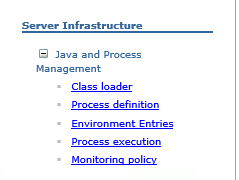
As you can see I only start the nodeagents. The servers themselves and the applications on them are bootstrapped to the start of those. To do that modify the server’s monitoring policy which is found under Java and Process Management for each server

Monitoring

Then set the “Node Restart State” to “RUNNING”

bootstrap nodeagents

Configuring Domino for SPNEGO

I was recently asked to put together a live demonstration for a customer on how they could use SPNEGO to access their web based Domino applications. To do that I opted to build a lab environment consisting of a Windows domain controller, a Windows based Domino server and a Windows 7 workstation so I could have a clean environment to present with.

Here is a modified copy of that presentation which will hopefully help you configure SPNEGO in your own environment.

Thank you to Sean Cull at Focul for clearing this presentation so I could share it.

If enough people are interested I would consider doing a webcast of this with a demo against my lab environment.

Creating SHA-2 4096 SSL Certificates for Domino

I’ve been doing a lot of work recently re-creating SSL certificates for customers who have SHA-1 or who want stronger certificates, mostly because so many sites are now failing validation in standard browsers because of SHA-1.  IBM have published several pieces of documentation on how to do this but I wanted to share my bullet list on the quickest and simplest way I have found .  It’s not hard there are just lots of new steps.

Firstly you need to know that SHA-2 support only really started with 9.0.1 FP3.  That means the Domino Admin client you are going to use to do this work must be at that level (yes there are hotfixes for FP2 but go with the latest Fix Pack on your client).

You also need to know that NO Domino 8.5x server will be able to use the keyfile you create, it simply doesn’t have the cryptographic understanding to decode SHA-2.

Finally if you use the CA process to generate internet certificates you will need to upgrade the server running that process to 9.0.1 FP3 too.

Oh and you’re also not going to be using the Domino Server Certificate database to do this at all.

  1. Download 9.0.1 and FP3 for Domino Administrator and upgrade your client. Fix pack 3 is in Fix Central and 9.0.1 is on the IBM download site (CIQ91EN)
  2. Download the latest “lite” version of OpenSSL from here and install it on your Windows machine where you have Domino Administrator running.  I installed it in c:\openssl for example
  3. Download the kyrtool from here and copy the executable to your Notes program directory
  4. Set the environment variable for OpenSSL by typing in a command prompt
    Set OpenSSL_Conf=c:\openssl\bin\openssl.cfg (or whatever your path is)
  5. Now we create our keypair using OpenSSL.  From C:\OpenSSL\bin directory type
    “openssl genrsa -out server.key 4096”
    obviously you can use any name if you don’t want to use server.key and you don’t have to create a 4096 strength keypair.  When finished you should have a file in that directory called server.key
  6. Now you have your keypair you need to create a CSR to send to the certificate authority
    openssl req -new -sha256 -key server.key -out server.csr
    the server.key name must match what you created in step 5 so if you used a different name there you need to use that name here. Similarly your server.csr filename can be anything you like.  When you enter this command be prepared to answer all the questions about the certificate you want generated including the common name etc.  The CSR this generates will be uploaded to your CA (Verisign, GoDaddy, Thawte, whoever) and your SSL certificate created based on the answers you give to those questions.
  7. Now we need to create a keyring file ready to add to certificate into when the CA sends it back.  Go to your Notes program directory and run the kyrtool
    kyrtool  create -k c:\notes\data\keyring.kyr -p <passwordyouwanttouse>
    again the keyring.kyr file can be called anything you like.  Once run you should have both a keyring.kyr and keyring.sth files in your data directory
  8. By now your CA should have sent you your certificate as well as some trusted and intermediate root certificates for their issuer.  We are going to create a single text file that contains the server.key we generated in step 5, the SSL certificate the CA just sent us (usually a .crt or .pem file) and any intermediate or root certificates the CA needs us to use.  Doing this is very simple.  Go to your c:\openssl\bin directory (the one where your server.key file was created) and enter
    type server.key server.crt intermediate.crt root.crt >server.txt
    note all the filenames will be specific to whatever you were sent by your CA.  If you were sent a single bundle then you would use server.key bundlename.crt for instance
  9. To verify your server.txt is created successfully your can validate it using the kyrtool.  Go back to your c:\notes program directory and type
    kyrtool verify <path to server.txt>
  10. Now we import our server.txt will all the certificates into our newly created keyring file we created in step 7
    kyrtool import all -k c:\notes\data\keyring.kyr -i c:\openssl\bin\server.txt
    again your filenames and paths may vary depending on what you chose

And that’s it.  You now have a keyring (kyr) file and stashed password file (sth) you can copy to you Domino 9.x servers and use.  If you want to validate the keys are correctly in the file then you can again use the kyrtool

kyrtool show keys -k c:\notes\data\keyring.kyr  AND

kyrtool show certs -k c:\notes\data\keyring.kyr

IBM’s documentation on the process and the supported platforms is here and here

The Recurring WebSphere Bug And Connections External Users

I wanted to share a recurring WebSphere bug that I noticed over a year ago because although it was irritating then, if it occurs now it can actually prevent you from deploying Connections external users the way you want.

Here’s the scenario (and it’s fairly common for me).

IBM Connections 5 CR2 on WebSphere 8.5.5 FP3

Primary LDAP is a Domino server

Secondary LDAP for external users is a separate Domino server in an isolated domain

When we want external users to access our Connections environment, the most secure approach is to have a dedicated LDAP server or branch for external users to appear in.  Especially if (as we do) you have a self registration / password reset process for those users.  The problem occurs because we want to use Domino as our LDAP.  LDAP servers other than Domino are built with hierarchical entries so on the WebSphere configuration screen where we are asked for the “unique distinguished name of base entries” that’s very easy, we just select the top level of the hierarchy.  Unfortunately in Domino LDAP we don’t always have a hierarchy – we have flat names and we have flat groups so if we try and use a O= xx value – those names and groups aren’t picked up.

We used to use C=US which would trick WebSphere into querying a level above O= and that would work but since WebSphere 7.0.0.23 we have been using the word “root” which validates both flat names and all hierarchies on the server.

So far so great.

Now we want to add another LDAP server which will be a Domino server where people will register.  We’ll have two TDI processes one connecting to the internal Domino server for internal users and another to the external Domino server for external user access.  It’s Domino so we want to use “root” as our base entry but since WebSphere requires all federated repositories to have unique base entries and since we already use “root” for our internal server, I have to fake a hierarchy for external users just so I can add the 2nd LDAP.  It’s ugly but not unworkable.  It’s also not our problem.

BaseEntries


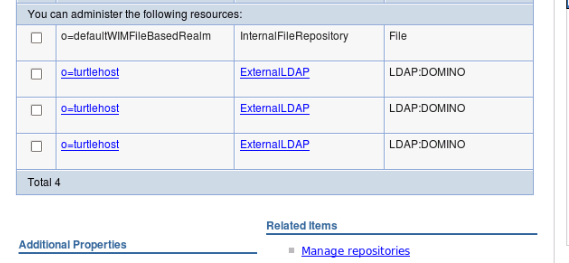
The problem is that once I add the second Domino server or even a third.  My federated repositories in WebSphere look like this

repositories

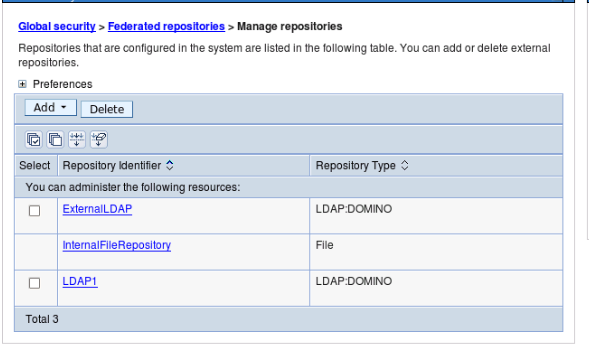
Can you see what’s wrong?  That table reads from the underlying wimconfig.xml file found under the Deployment Manager profile /config/cells/<cellname>/wim/config.  That wimconfig.xml is fine which is why if I click on Manage Repositories they are all there.  I just can’t edit them from this screen, I can only edit from the previous screen and that one links to the last LDAP entry I added.

managerepositories

So that’s part of our problem.  It’s been there for a few years but since we could manually edit the wimconfig.xml to overwrite settings it was workable.  This is caused by the “root” base entry on the first LDAP.  That word “root” translates to an empty baseentries name= value in wimconfig.

Here’s the internal LDAP with baseEntries name=””

wimconfigroot

Here’s the external LDAP where I have defined a base entry of o=turtlehost

wimconfigexternal


The additional side effect of this bug (and I’m not sure we can call it a WebSphere bug since expecting hierarchical LDAP is a fairly standard thing) is that in the latest version of WebSphere, it refused to search the second external directory.  No error. Nothing.  Just refused to search it which meant those users couldn’t login.

I edited wimconfig.xml and added a O=Turtle to replace the baseentries name=”” etc and that fixed both the WebSphere view and the ability of users to login.

So where does that leave us.  Well it’s a problem because I want to use Domino. I don’t want to have to force a single hierarchy.  C=xx doesn’t work anymore to trick WebSphere.  “root” breaks both WebSphere and authentication.  That means I can’t have a secondary Domino server for external users and still use a “root” base entry for the internal server.  Without that “root” value, the flat Domino groups will be ignored.

That leaves me with a few options

1. Force a fake hierarchy on groups so I can have a base entry value that works and not use root

2. Use Directory Assistance and “root” but that allows external users to authenticate against my internal directory.  I don’t like that

3. Use an LDAP attribute to separate external from internal users instead of a dedicated LDAP server.  For security reasons i’m no fan of that either

4. Don’t use Domino for both LDAPs, only for one of them.  One “root” defined Domino server will work fine


New Sessions At Social Connections

Here I am at Heathrow heading out to Boston for Social Connections this week.  Held at IBMs Research Centre in Boston Social Connections is focussed around IBM Connections (what else!) software with most sessions lasting only 30 minutes.  That’s a tough trick to pull off in a technical session but I’m taking it as a challenge to get my information across in so short a time.  I’ll be there on Thursday all day and presenting with Terri Warren from IBM on “Who Does Connections Think I Am?” At 4.55pm where we’ll dig into how your identity and directories work.  On Friday I have two sessions – one of 30 minutes on being a Connections Administrator at 12pm and a high speed 15 minute session at 1.30 on Design and how to choose what servers, features and add-ons you’ll need. 

So three entirely new sessions I hope you’ll enjoy – see you there!

Nice Strategy Map From IBM

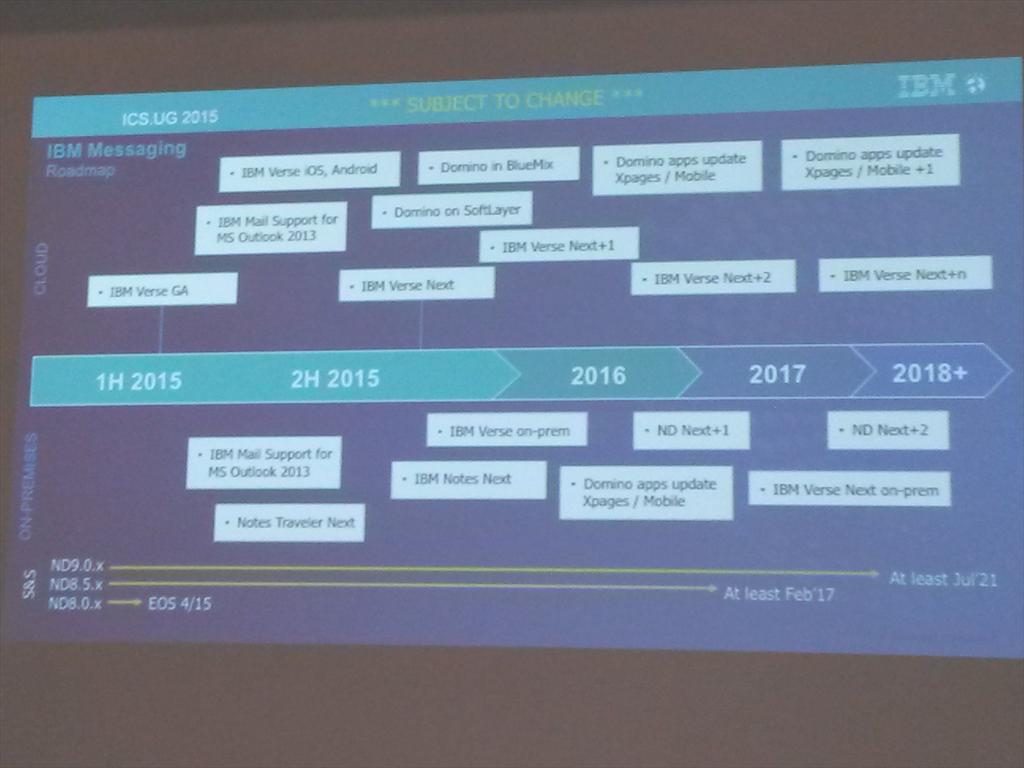
Today at the Keynote of #ICSUG in Germany, Kramer Reeves presented a strategy map for ongoing development of IBM’s Messaging.  A big thank you to Henning Schmidt (@schmhen) for tweeting this. Note the ND+1 and ND+2 in 2016/17 and 2017/18 alongside July 2021.

Obviously “SUBJECT TO CHANGE” but this very clear statement from IBM at today’s Keynote points to an  extremely ambitious and forward looking strategy

“We have made the big bet that Domino is our long-term strategic server” – Kramer Reeves”

CBAvbQUWUAAPCjR.jpg-large

Upgrading Filenet – Something To Watch Out For

Last night I was working on a Connections CR2 upgrade that included upgrading Filenet.    I was using this very nice piece of documentation from IBM on a lab walkthrough of upgrading to CR2 here .  To date my biggest problem with FileNet has been finding all the files needed and that’s especially true of the CR2 update files but I got there.  What tripped me up was upgrading the CE Client and FNCS (section 3.4.5 on the document).  The sample command is

update-fncs-ceclient.bat -was.dm.path “C:\IBM\WebSphere\AppServer\profiles\Dmgr01” – was.admin.user wasadmin -was.admin.password Passw0rd -fncs.fp.installer.location “c:\Downloads\FNCR2\IBM_CONTENT_NAVIGATOR-2.0.3.2-FP002- WIN.exe” -doInstallFNCS y -ceclient.fp.installer.location “C:Downloads\FNCR2\Filenet cr2\5.2.1-P8CPE-CLIENT-WIN.EXE” – doInstallCEClient y

The problem is that this script ran for about 6 minutes then bombed out.  I checked the fn-fncs-ceclient-update.log file in c:\ibm\connections\ccm\ccm\ccm\scripts (where the script is run from) and it showed a failure to make a SOAP connection (after it had already successfully made one earlier in the script).  I then checked wsadmin.traceout in the Dmgr profile under logs and saw references to “WASX7198W websphere The configuration service is not running” and other failures logging in like “empty credentials”.

OK so the problem was my login credentials used in the script for admin account and password right? Wrong.  Because that works fine earlier in the script. In fact the first thing it does is make a SOAP connection to the Dmgr server.  OK.  So the problem is that my password for the admin account contained a ! – we all know that WAS doesn’t like encoding and decoding special characters right?  Wrong. I tried another account, and another,  I tried wasadmin but that failed (and I wondered if that was because it was a FileNet update and FileNet wants an LDAP account).  At this point i’m bouncing between accounts trying to get this working.  I get the customer to remove the ! and give me a password with no special characters.  Still no luck.

Then I think a bit more.  What if the script isn’t using the values I gave it to run but instead is assuming they are already there in soap.client.props and is attempting to read them from that file. I go to check soap.client.props under Dmgr\properties and there is no value stored there at all.  I add my admin credentials in there and the script runs perfectly.

Today’s lesson is don’t assume a script you are running is using the credentials you give it!


Searching For The Elusive 5.2.0-P8CE-WIN.EXE

In this month’s adventures of Connections installs I offer you my search for a required Filenet installer.  If you’re installing CCM there are 4 files you need to have in a directory for the Connections install to complete – from the install instructions here and shown below .  I’ve done this lots of times and you basically put the executables together in one directory you can point to during the Connections install.

Filenet Install Files

However with CR2 came a requirement to update the installers see here and below

CR2 Requirements

Notice the difference?  CR2 doesn’t list the 5.2.0-P8CE-WIN (LINUX, AIX , ZLINUX) file at all as a required update.  That means that all the other files are in Fixcentral but not that one.  So I want the latest file and I don’t know if there’s a newer one.  I go to Fix Central and search for 5.2.0-P8CE and get offered the 5.2.0.3-P8CP8 files.  I try to search for a download list for IBM Connections Content Manager but it doesn’t exist (I like the download lists because they often have the latest part numbers).  There is one for IBM Connections but that doesn’t include any of the FileNet components.

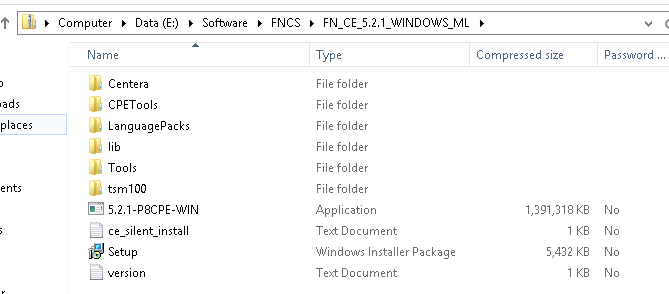
Off I go to Partnerworld where I type in IBM Connections Content Manager and I get an eAssembly to go through including the file FN_CE_5.2.1_WINDOWS_ML which sounded hopeful but I already had that and it contains the following. Note 5.2.1-P8CPE-WIN not P8CE.  The 5.2.0 files were no longer showing on Partnerworld under Connections Content Manager

FN_CE_5.2.1_WINDOWS_ML


Luckily I’m a paranoid control freak and have backups of all the installers myself and there I found the original FN_CE_5.2_WINDOWS_ML file which, when download and extracted had the correct 5.2.0-P8CE-WIN file in it.  The one the Connections installer wanted and refused to progress without.

FN_CE_5.2.1_WINDOWS_ML


The sizes of the zip files should have made me suspicious.  It does look like the 5.2.1 zip file in partnerworld has the wrong content (possibly because there isn’t a 5.2.1 for P8CE only for P8CPE) and i’m not the only one who goes cross eyed staring at P8CE vs P8CPE.   Or maybe I’ve been staring at this too long. Either way thanks to my backup I’m sorted now.

Zip File Sizes