Access Denied – Me vs OS and WebSphere Security

Today I went to apply a patch to a customer’s Sametime Proxy server.  This is a server that’s been around for a few weeks.  I’ve logged into the SSC countless times in that time.  I launch Installation Manager (using “run as administrator”) and when it gets to the “sign on to SSC” part it fails saying it can’t connect.  I check the logs in /users/myname/appdata/local/temp/SSCLogs and find the error saying it can’t resolve <sschostname>:9443/console/deployment/login.  So I try that URL in a browser myself  and sure enough it does fail.

Well I can guess what that is and it’s an easy fix.  In Sametime we map virtual hosts for each application including the SSC containing the hostnames and ports used by that application.  So I went to check that the default_host virtual host used by the SSC had 9443 in it.

Go to SSC on the Deployment Manager server through a browser, try and login using my file repository account.  Login failed.  Try again. and again.  and again. and again. Type into notepad to make sure there’s no caps lock or language issues.  Failed again. This is worrying, no-one else has access right now so no-one has changed any password. I check the SystemOut.log for dmgr and there are errors in there and in the FFDC files saying Password is wrong.  OK.  No need to panic.  I’ve seen this before when Dmgr gets low on memory so first things first, let’s restart the box.  If in doubt, reboot WebSphere.  Server comes back up and still I can’t login.

OK so now I start to worry.  I go find the security.xml file in the config for the cell and decode the password stored in there (don’t ask how because I shouldn’t be able to but it’s possible).  The password says it’s what I think it is.  I really really don’t want to go down the path of changing that password even though I can disable security and do that because that’s going to have knock on effects all over the place….So – deep breath – let’s try this again from another machine.  I go to the SSC from my desktop this time instead of a browser on the DMGR server and it logs in perfectly first time using the name and password that was failing when I tried from the DMGR server.  Back to the browser on the server, login still fails.   This makes no sense.

So the issue isn’t the “wrong password” at all.  The issue is that the security on the SSC OS is preventing me logging in via a browser – I assume preventing the browser accessing the files on the file system in some way.  In addition the SSC was unable to sync any nodes or restart any servers (this was new) although it could tell status – until I restarted everything manually under my account.  This appears to be a problem with the services on the SSC accessing the file system on any of the OS even its own.  The customer is looking into all of that since the environment is tightly locked down and I can’t see anything.

When I finally got in (and yes I could use the LDAP alternative accounts I had in there) I added 9443 and 9080 to default_host under the hostname of the SSC and the Installation Manager ran fine.

Today’s lesson learned..DON’T PANIC!


Sametime Audio and Video Problems

This week’s Sametime PMR was a problem with Audio / Video on a newly deployed infrastructure.  This is a long blog but hopefully you’ll find it all useful. The installs all went fine and the peer to peer calling worked, which meant the clients were able to register with the proxy registrar.  However multi user or meeting video was failing.

The first thing you need to know about ST Audio / Video is that there are several moving parts – in this instance all servers are installed on SLES11

  1. Proxy Registrar / Conference Manager – in this environment both these applications are installed into one instance of STMediaServer
  2. Video Manager which is a WebSphere server installed as a standalone node (outside the SSC cell) and requires SolidDB (which the Video Manager installer places and configures)
  3. VMCU – the Video MCU which will handle the multi way video traffic via the Video Manager

The second thing you need to know – and it’s not well documented at all – is that the start order of those elements is vitally important. Start them in the wrong order and you won’t get any audio / video at all (if you check your Sametime client preferences you will not see any A/V components or options).  So what’s the start and stop order?

Start with Video Manager components

  1. Soliddb must be started first using /opt/soliddb/soliddb-7.0/bin/solid -c /opt/soliddb/soliddb-7.0/eval/standalone*
  2. Once started the Video manager can be started using the server name STMediaServer
  3. Start the Video MCU by typing  :  service soft_mcu start (also “status” and “stop”) work
  4. Start the PR/CM WebSphere server STMediaServer

To stop all elements do 4-3-2-1 in reverse

To stop soliddb type solsql then when prompted for login details use the name and password admin
issue the commands (with a semi colon at the end of each line)

admin command ‘force shutdown’;

exit;

*soliddb listens on port 2315 – you can verify it’s running or stopped by doing a netstat. On linux that’s
netstat -an | grep -i “2315”

(the solid.ini file in /opt/soliddb/solidb-7.0/eval/standalone will tell you which port is being used by the server)

The next thing you need to know is that even if it all installed perfectly you must go through the process of exchanging certificates between the PR/CM in the SSC cell and the Video Manager standalone server.  This is documented here and this is where my PMR occurred   The problem was once the certificates were exchanged we lost all video completely.  Even peer to peer.  I assumed it was a small problem, maybe my start order or I wasn’t letting everything have enough time to start but no.. the problem was that we were using a wildcard certificate.

IBM do support wildcards, they have to since the ST Advanced server and ST Proxy server must share a certificate.  Unfortunately we discovered that the underlying video software (which actually comes from Polycom licensed to IBM) doesn’t support a wildcard certificate so when I did the exchange, everything broke.  Once I knew that I reverted the Video servers (PR/CM and Video Manager) to the IBM installed certificate (since the clients don’t directly connect there) and everything started working.

I am waiting to hear back from L3 if using the mixed certificates (wildcard for ST Proxy, Meeting and Advanced and IBM installed for the Video and SSC) will present any problems but right now we are back in business with all ST features.

The IBM Support Overnight Mystery

Several days this week I have worked on a different PMR (two ST bugs one CCM more on later) with people from IBM support who have been helpful, informed and as curious about the problem as I was (or faking it really really well) . We’ve had screen shares, investigated the problem and left it at the end of day the as “escalate to L3 development”.

Then each morning I wake up to an overnight email from someone new saying they are in charge of the PMR but who has seemingly never seen the problem and is asking me to do basic stuff like send in logs or apply a patch that was already checked (and updated in the PMR) at least a day earlier.

I understand the difficulties in providing 24×7 support and I’m sure there’s an alert somewhere that gives someone a kick overnight and tells them I HAVE to be followed up even if there’s no action task back from L3. Clearly there is a process for “following up” out of hours which does exactly that and only that based on the original call. I now reluctantly set those emails to ignore , or respond asking them to read the PMR history, but I worry what customers do .

Do they run around in circles doing this repeat “make work” until someone who has read the actual updates comes in ?

Oh and two out of the three PMRs are now closed. I will blog both which are interesting and apparently a googlewhack of problems (we were the first to report) later today. :-). So thank you to everyone who worked with me on them this week.

Sametime Trusted IPs – A Problem That Won’t Go Away

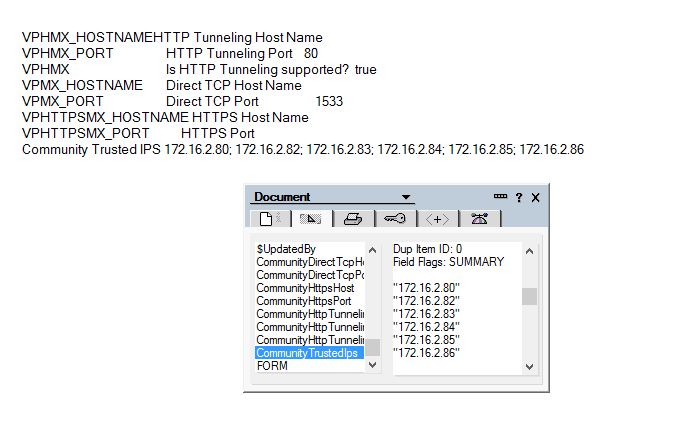
Every since Sametime 8.5.2 was released I have seen a continual problem with Sametime trusted ips that  is still there in Sametime 9.0.1.  The issue is that the trusted ips list (which tells the Community Server which server ips to accept connections from) is now entered into the Sametime System Console in WebSphere and not directly into the CommunityConnectivity document in stconfig.nsf.  This means that since 8.5.2  the trusted ips in the Community Server configuration in WebSphere are then written to the Domino document at intervals.

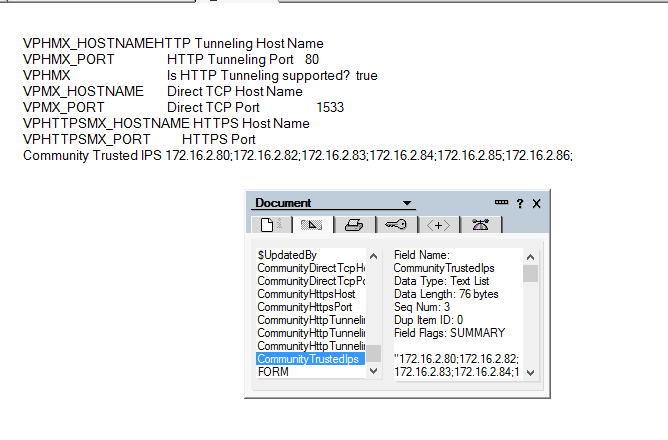
So what’s the problem?  Well when WebSphere writes the list of trusted ips into the Domino document, it does so as a string, not as a list.  A small thing but that means when the Community server restarts the trusted ips don’t work as what Sametime sees is a long string instead of multiple values.  To fix this I wait until WebSphere has updated and then open and save the CommunityConnectivity document which refreshes and parses the string with commas in it into a list (since the field is a multi value list field anyway Domino is smart enough to do that).

Of course I then have to restart the server. Below are the examples of what I mean, first how WebSphere writes the values and secondly how Sametime needs to see them written.

How WebSphere Writes The Values

How WebSphere Writes The Values

How Sametime Wants To See The Values

How Sametime Wants To See The Values

I first opened a PMR on this back in 8.5.2 days and have tried occasionally since then  to open others but never got very far (around the time I am explaining Domino multi value fields to someone in China I lose the will to live). It always occurs if I have several ips to enter, not so much if there is just one or two.  The annoying thing is remembering to check every time I make any change to the Community Server configuration (which isn’t often once it’s setup).  Anyway, this has been my built in workaround for 3 years, it’s not hard and I know one of two other people out there have seen this too so here’s my “fix”…..

Choose Your Installation Manager Carefully….

In both Sametime and Connections builds I have come across customers installing different versions of Installation Manager than that recommended or supplied with the product. The ST and Connections apps are both 32bit so although they will install under a 64bit version of Installation Manager, you will get a warning about it being 64bit.  Don’t ignore that.

There’s no advantage to you choosing 64bit Installation Manager over 32bit on a 64bit platform and worse, since it manages all your installs, if you discover it’s a problem later you can’t fix it because you can’t uninstall it without uninstalling everything it installed itself.  I did a workaround at a customer  I was brought into once where we renamed the IM folder and installed a new 32bit version to make sure ST Media Manager would install but that’s a fudge.

Do yourself a favour, you can’t go wrong with 32bit 🙂

Hidden Pre-Reqs for Sametime VMCU – Surprise!

Building out another Sametime environment this week and I hit a roadblock. Fortunately because I’m a control freak I always read along with the documentation when I do an install, no matter how many times I’ve done it before.  I do this because it’s always possible IBM have updated their documentation since I last saw it…..and so I found,  buried in the documentation here, on the install page of the VMCU.. under

Deploying –

Deploying Common Component –

Deploying Audio and Video –

Sametime Media Manager on Linux or Windows –

Installing the Sametime Media Manager’s VMCU component –

Installing the Sametime the Sametime Video MCU – Step 9)

I find this

Download and install the following prerequisite RPMs if they are not already installed.

For the list of RPMs to install, see the IBM Technote, List of RPMs to install on the Sametime Video MCU

Yes a shiny list of pre-reqs required only by the VMCU and not on the system requirements.  Unfortunately they are all fairly old RPMs and at the current site although the packages are there, they are all newer versions of the ones needed.  The tech note is very specific about that

Important: Each RPM’s file name includes a version number in the format X.X.X.Y, where X is a mandatory level that cannot be changed, and Y is a minimum level. If your RPM has a higher level for the value in the Y position, you can use it.”

So you may have zlib installed but if you have zlib-1.2.7-0.*.x86_64.rpm but the tech note calls for zlib-1.2.3-106.*.x86_64.rpm then you’re out of luck unless you can revert back to zlib-1.2.3. something

I assume the tech note (which is only a couple of weeks’ old) is a result of support having to deal with VMCU problems and determining those exact packages are needed for the VMCU to work.  It’s not a problem so long as you know about it and make sure those packages are in place before you start.

Keeping On Top Of Sametime Fixes

Thanks to Jeffrey Miller @ IBM for posting a blog page with links to all the latest fixes for the Sametime components.  He has offered to keep this up to date and I strongly suggest you bookmark the page (I did) to save trying to navigate through the hundreds of individual items on fix list and work out what supersedes what.

http://www.mymiller.name/wordpress/sametime/sametime-9-0-latest-published-versions/

Problems Deploying Sametime Policies – The Missing Link

I’ve recently run into a problem deploying Sametime Community Server 9.0.1 at two new sites and on an existing 8.5.2 IFR1 site which I’m not 100% convinced is the same issue but as part of my troubleshooting I discovered a missing piece of  policy behaviour that I”m finding extremely useful.

Prior to Sametime 9, policies were deployed on the Community Server and used the database stpolicy.nsf.  That database no longer exists in v9 and later.  In Sametime 8.5.2, if you didn’t deploy the System Console and just had a standalone Community Server you were still using stpolicy.nsf.  As of v9 of Sametime you can no longer do that as stpolicy.nsf no longer exists.   The Community Server must be deployed with the System Console in order to manage policies from within the Console itself. Carry on reading, that’s not the missing link:-)

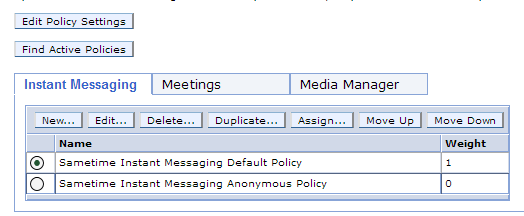
Here’s a screenshot of the Sametime System Console showing where you set up policies, this is stored in the STSC DB2 database.

SSC Policies

From here the policies are pushed down to Community server (Domino) at intervals (approximately hourly) or when the server or policy service restarts so they can be applied to users on login.  This means that clients logging in are receiving policies from the Community server, they aren’t directly looking up policies from the System Console.  If there’s a breakdown in communication between the SSC and the Community server, you can’t push policy updates down to the users.

When installing the Sametime Community Server, the default policy is to allow minimal features through the embedded client, things like screen capture, file transfer and rich text editing are disabled, however I have discovered on two different sites with new 9.0.1 installs, the changes to the default policy were not feeding down to the clients.  The problem was where to track this down.  The policy was right in the System Console but if I turned on POLICY_DEBUG_LEVEL=5 (in the [Debug] section of sametime.ini) I could see that the policy settings being applied did not match those from the System Console.  I even created and deleted additional policies and saw them continue to be ignored through reboots.

So where was the missing piece – somewhere the Community Server was picking up old values but with no stpolicy.nsf there was seemingly nowhere for me to find them.  A separate earlier PMR to IBM pointed me to two new (to me) Xml files on the Community Server file system (domino program directory)

policies.server.xml

policies.user.xml

These are where the System Console policies are written and updated and where the Community server policy service accesses the settings to deploy to users.  The date / time stamp on those files was suspiciously that of the original install, so they hadn’t been updated since then.  The next thing to check is why these weren’t updating.

The first thing to do is test that the Community Server can access and read policies using your wasadmin (or whatever your administrative account it) account.  To do that launch a browser on the Community Server and go to http://sscserver.turtlehost.net:9080/stpolicy/policy/all – you should be prompted for a login, give it your wasadmin name and credentials and the policies should display as a string of values in your browser.  If that works but the policies.server.xml and policies.user.xml files still aren’t updating then the problem may be with how you are telling the Community Server to connect to the SSC.

In the Domino program directory there is a “console” subdirectory and in there is a console.properties file that tells the Community Server how to connect to the System Console.  The contents of that property file are

SSCEncodedAuthorization= [the encoded password for the wasadmin account or whatever your admin account is}
SSCSSLEnabled]=false
SSCHTTPPort=9080
SSCHostName=sscserver.turtlehost.net
SelectedDeploymentId={deployment id of the community server plan in the SSC}
SSCHTTPSPort=9443
LogLevel=FINEST

What’s missing from there is the SSCUserName which identifies the name of the user who is going to login (usually wasadmin) and SSCPassword which contains the unencrypted password for wasadmin (removed and replaced with SSCEncodedAuthorization on first use).  Both of those were required in 8.5.2 versions but don’t seem to be there in 9.0.1  It may be that they shouldn’t be needed but twice now I have seen policies not update after initial install and adding those values to the console.properties , removing the SSCEncodedAuthorization and restarting fixed the problem permanently.  If you add the SSCPassword and remove the SSCEncodedAuthorization you can tell if the connection to the SSC was successful because the properties file will then remove the SSCPassword and replace the SSCEncodedAuthorization.

So there you have it – three missing pieces to help debug policy deployment in Sametime

1. The Domino server based XML files policies.server.xml and policies.user.xml

2. The URL http://sscserver.turtlehost.net:9080/stpolicy/policy/all

3. The console.properties file in the console subdirectory under the Domino program directory


A word of warning about Sametime 9 Community Server

Someone on our Sametime exam team questioned this this morning and I realised it definitely needs to be publicly called out. The Sametime 9 Community Server no longer has any stpolicy.nsf database or a policies view under the old school web based admin. If you upgrade to Sametime 9 you must install the system console (and db2) to be able to manage and maintain policies going forward.

Something for your planning…