WebSphere Things That Drive Me Insane – Pt..um.. 3

I actually like WebSphere. Honestly I do.  But it really really does not like Domino and Domino is my first love (well 2nd love.. ccMail you’ll always be first in my heart).  I have always run into problems configuring Domino within WebSphere mostly due to the fact that Domino LDAP isn’t always hierarchical the way every other LDAP is.  Back in the original Sametime 8.5 days we couldn’t have users of ST who didn’t have hierarchical names and we used to have to fake a hierarchy (C=US) to trick WebSphere.

My latest hair tearing out insanity is shown below.  To configure external users for Connections you can choose to set up an alternate LDAP source – in this case I’m using a dedicated Domino server I can make publicly available for people to register themselves.  Here are my repositories set up in WebSphere showing the two Domino LDAP sources..

LDAP1 is our internal directory LDAP SSO the external / public facing

LDAP1 is our internal directory
LDAP SSO the external / public facing

Here’s the fun bit.. this is what the federated repositories actually look like in WebSphere

Federated Repositories

As soon as I added the external Domino LDAP repository it changed the original internal one to the external one so that’s listed twice.  Try and add it again and it adds the same one a third time.  Even more hilarious, only the original (unlisted) one actually works and lists / authenticates users.

And yes, if I try and delete one it actually deletes all three.  Off I go to edit some XML files….I’ll post a fix when I get there
Connections 5 SPNEGO Confusion – Dogs & Cats Living Together!

I have been working on a PMR for Connections 5 trying to configure SPNEGO , foolishly as it turns out using the IBM Connections 5 Knowledge Center.  I have just finished a 3hr screenshare with WebSphere security support who started the call asking why on earth I was configuring it the way I was.  When I showed them the documentation on the Knowledge Center for configuring SPNEGO I was asked “why are the Connections team saying to do that, that will never work”. Imagine my joy having spent nearly 2 days working on it before opening a PMR.

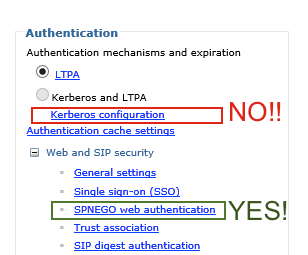
They are going to fix the knowledge center documentation hopefully but in the meantime this handy dandy little screenshot should help you

BADSPNEGO

The incorrect documentation (and hopefully it will be fixed before you even click on it) is here

In addition the WebSphere security team disagree with the Connections team on creating a keytab for the IHS server only in any circumstances which this document says to do

Finally they also disagree on requiring the connectionsAdmin account to be the one that is used to start Windows services which may be a bad use of wording on this document here (See item 6).   They have advised that as far as SPNEGO is concerned any AD account would do.

They have also advised that you should make sure there are no other SPNs for that hostname floating about (I don’t have visibility of AD but it’s one for the customer to check)

I have asked for definitive documentation from the Connections and Websphere teams on how they want this configured before moving forward

Anyone Fancy An Indispensbile Tool For Connections Migrations?

When working with Connections so much of the configuration is done in XML or properties files on the file system of the servers.  That means, no matter how organised I try and be, I often find multiple copies of files each with different date/time stamps or even with different names (LotusConnections-Config.PreNewNode for example) for me to identify.  This is especially true with the TDI syncing where I often end up creating multiple TDISol directories over the course of a deployment as customers want to change what data syncs, how and where.

The problem with this is that everything is very reliant on how well the files are commented and more often than not I’m coming in behind someone else so I have to look at files with no commenting at all or commenting that only makes sense to the person who wrote it.

As an admin I have never really needed to compare the contents of one file with another to spot the differences (that’s more a coding problem) but with Connections I need to use that technique all the time.  Take my work this week for instance, upgrading a Connections 4.5 server to Connections 5 .

The first question is, looking at the TDISol directory, have any of the properties files I need to update changed since 4.5. If not then great, I can just add new servers and passwords and away we go.  If they have I have to merge the old settings into the new and I’d rather not rely on me reading each line and visually comparing them across several dense pages.  To do this my favourite tool is Kaleidescope  for the Mac.  It’s not free (it’s about 70 dollars) but it has a great UI , features and does the job.  I’ve been using it for a couple of years and they keep adding new features.  It also does a great job on comparing and spotting changes in images – or what I call the “hey that’s been photoshopped” feature.


Kaleidescope


In the picture above i’m comparing the profiles_tdi.properties file from the 4.5 install to a new one for the 5.0 install to make sure I don’t miss any custom settings.  I did the same with mapdb_repos_from_source.properties and mapdb_repos_to_source.properties.  As you can see from the screenshot (the one on the left being the 4.5 one), any additions are in green, deletions in red and changes in purple (with the actual changed words being darker purple).  This makes it very easy for me to spot what needs to be changed from one file to the other.  It’s not perfect , if the format of the file means that some lines appear a page further down in one document vs the other then you will see markup for both but it’s a lot better than any hope I have to spot all the differences myself.


Connections CCM Problems – Libraries not “quite” working

My 2nd PMR this week was for Connections and Content Manager.  I had already installed FileNet in the test environment for this customer and the only difference between test and production was really the number of servers with CCM having its own dedicated VM.  The install completed and I tested uploading files, editing files, clicking “like” etc and it all seemed OK so I handed it over to the customer.

Turns out there was a problem.  No library , once created, could be edited.  Not the title, not the security, nothing.  Any editing threw up an error

All the installs were correct.  The updates had applied OK.  The correct versions of FileNet were running.  We even checked the security on the ICObjectStore in FileNet’s ACCE administration interface.  Nothing looked wrong but the error message was strange

“The requested approval  action could not be performed because the library, CCM Libraries, is not enabled for document approval. The library’s repository, ICObjectStore, might not have the document approval addon installed, or the library might not be a teamspace. Contact your administrator and report this error message”

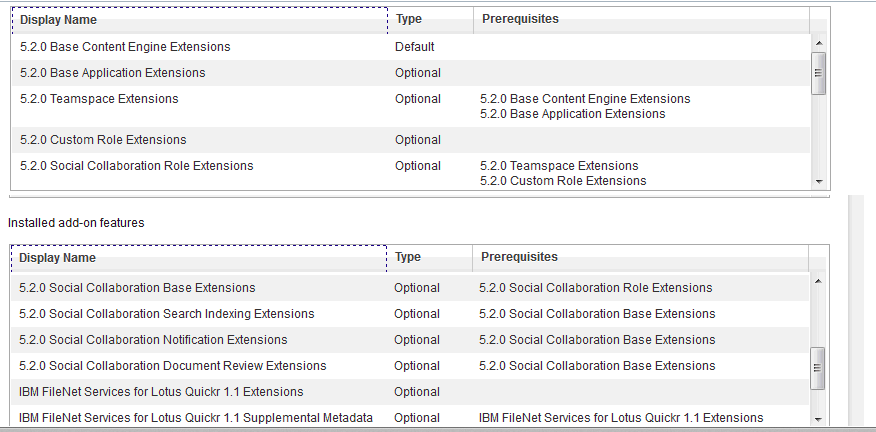
As part of the investigation trying to find out what was wrong (and whilst waiting for L3 to review) I saw this option when I right clicked on the ICObjectStore in ACCE – add on features.  AddOnFeatures


So , whilst we waited, the IBM support guy (can I name him here?) sent me a list of all his add ons and I compared them to all of mine and sure enough about 8 were missing.  I added those and everything started working.  Why those 8 failed to install is another matter since all the logs said everything installed fine.  Interestingly at this customer we’ve had trouble deploying applications in the past due to network timeouts between the Dmgr and other servers so I do wonder if that was it (for instance CR3 seemed to install but several of the applications were corrupted when we tried to use them and I had to install them again manually).

An interesting one and a nice easy fix.  I’ve added screenshots below of all the add ons we should have had so you can compare if you find a similar problem.

Addons Pt1 Addons Pt1


The IBM Support Overnight Mystery

Several days this week I have worked on a different PMR (two ST bugs one CCM more on later) with people from IBM support who have been helpful, informed and as curious about the problem as I was (or faking it really really well) . We’ve had screen shares, investigated the problem and left it at the end of day the as “escalate to L3 development”.

Then each morning I wake up to an overnight email from someone new saying they are in charge of the PMR but who has seemingly never seen the problem and is asking me to do basic stuff like send in logs or apply a patch that was already checked (and updated in the PMR) at least a day earlier.

I understand the difficulties in providing 24×7 support and I’m sure there’s an alert somewhere that gives someone a kick overnight and tells them I HAVE to be followed up even if there’s no action task back from L3. Clearly there is a process for “following up” out of hours which does exactly that and only that based on the original call. I now reluctantly set those emails to ignore , or respond asking them to read the PMR history, but I worry what customers do .

Do they run around in circles doing this repeat “make work” until someone who has read the actual updates comes in ?

Oh and two out of the three PMRs are now closed. I will blog both which are interesting and apparently a googlewhack of problems (we were the first to report) later today. :-). So thank you to everyone who worked with me on them this week.

Connections 5 Worksheet – In Case It’s Useful

The IBM wiki and now Knowledge Centre publish a worksheet you can use when installing Connections to help document your work.  I have used  this,  or a version of this,  when I’m doing installs but unfortunately although the wiki (4.5) version can be copied / pasted straight into Excel and retain its table format, the Knowledge Centre Connections 5 one here  doesn’t format properly when I take it into a spreadsheet.  Rather than spend time trying to work out how to fix it I created my own spreadsheet and since I’m using it this week for another install I thought it would be useful to share here.

It’s in Excel format, one tab per product.  Fill this in as you install and you have ready made documentation.

Connections5Worksheet

Choose Your Installation Manager Carefully….

In both Sametime and Connections builds I have come across customers installing different versions of Installation Manager than that recommended or supplied with the product. The ST and Connections apps are both 32bit so although they will install under a 64bit version of Installation Manager, you will get a warning about it being 64bit.  Don’t ignore that.

There’s no advantage to you choosing 64bit Installation Manager over 32bit on a 64bit platform and worse, since it manages all your installs, if you discover it’s a problem later you can’t fix it because you can’t uninstall it without uninstalling everything it installed itself.  I did a workaround at a customer  I was brought into once where we renamed the IM folder and installed a new 32bit version to make sure ST Media Manager would install but that’s a fudge.

Do yourself a favour, you can’t go wrong with 32bit 🙂

When bad wasadmins go missing

Working yesterday on deploying a new application in a test Connections environment I was logged into the ISC using wasadmin for hours. Eventually I finish my work and restart everything to test.  I go to login to the deployment manager and no account will work, not wasadmin nor any of the LDAP administrative accounts set up.  So what do I do?  Well first I need to work out what’s going wrong and I check SystemOut.log when trying to login and see this error as a root cause

CWWIM2009E The principal ‘AnonymousUser’ does not have the role ‘administrator’ required for the operation ‘GET CONFIGURATION’

Well OK, let’s back up ,since it happened after a reboot the change could have been made any time since the previous restart and wasn’t necessarily related to the work I was doing at all.  First I need to get into the ISC and to do that I need to disable ISC security so I can get in.  I edit security.xml in the /profiles/dmgr/config/cells/<cellname> directory and find the first enabled=”true” in the security tag and change that to enabled=”false” (make sure you save a copy of this file first).  Then stop the dmgr and start it again. I have trouble stopping it as the authentication isn’t working so , since the dmgr is the only WAS server running , I just terminate java.exe from task manager.  Having done that the URL for the dmgr  <hostname>:9043/ibm/console no longer asks for a password and lets me login using just a user name.  and I’m IN – albeit with no security so no way to start servers.

I go look at the Administrative users configured in the system and sure enough the LDAP admin accounts are there but wasadmin is gone.  I can’t add wasadmin because security is disabled and it can’t find the account.  I can work around it but a better solution is to tell the ISC to use the LDAP realm instead of the defaultWimFileBasedRealm (which contains wasadmin).  I go to Global Security, re-enable security from that screen (it was disabled by my earlier security.xml change) and then go into the federated repository and change the realm name from o=defaultWIMFileBasedRealm to whatever my LDAP realm is (in this case “root”) and then change the Primary administrative user name to one of my LDAP admin accounts (in this case gabdavis).

Global Security

Now I can restart dmgr and login to the ISC with the name gabdavis (my ldap account) and its ldap password.  Once in there I can go to Administrative Users and re-add wasadmin with all the roles I need then (if I wanted to) go back to Global Security and revert the realm and primary administrative account back to what was set originally (above).

And that’s it.  I hope this is useful for anyone else who has a wasadmin go astray…Backup your deployment manager profile regularly people !

Connections .. um Next?

Next week on May 21st sees the launch of IBM Connections Next, coming 14 months after Connections 4.5.  Initially it will be in IBM’s cloud only but by the end of June we will have software to install on site.  That timeline matches IBM’s promise of end of Q2.  This is a major release so everyone is under NDA until May 21st.

If you’re a Connections customer and you don’t have a test environment in place then you are going to want one to validate your customisations, scripts and applications.  As far as your production environment is concerned ,  I don’t know if IBM will support an in-place upgrade, they certainly have before but my preference is always side by side to minimise downtime and risk.  If Connections Next is based upon WebSphere 8.5 (as Sametime is) rather than WebSphere 8.0 then side by side will likely be the only option.  We’ll see if that’s the case when the documentation appears..

The best public information right now is this presentation from Luis Benitez @ Connect 2014

there is also a Q&A with Luis and Suzanne Livingston on May 22nd  you can register for here

In the meantime – enjoy this great trailer for Connections Next 

Exciting things are coming!

Adventures With CCM and Libraries

Recently I’ve run into all sorts of problems deploying CCM for a customer who is running multiple servers.  In this case two of the biggest problems were down to the Filenet application server being different from the Connections application server so I’ll write them up here in case anyone else runs into the same thing.

Problem No.1 CreateObjectStore batch file fails with

“CC0050E CONTENT_FCA_ROOT_DOES_NOT_EXIST the root folder does not exist d:\ibm\connections\data\shared\ccm”

After much checking that the folder was there and did exist and the account running the CreateObjectStore did have rights I realised that it wasn’t looking on the Deployment Manager server (where the Filenet files are installed and where the batch files are run from) but on the WebSphere Application Server designed to run the CCM Application.  That server, which was a completely separate machine,  didn’t even have a D drive. It had an E drive.  Once I was able to create d:\ibm\connections\data\shared\ccm on that second server, the setup completed.

Problem No.2 Principal Name not found when running CreateGCD

This failed multiple times no matter what account we used although we had a specific account set up for CCM called ccm_administrator that had a valid email address and was in LDAP, this kept failing.  I could see the account in LDAP (Domino) , through an LDAP browser and could validate the password but CCM didn’t like it.  In the end we discovered that the site had a filter for LDAP users in Connections that required a certain attribute to be complete, that account didn’t have that attribute set so even though it was a valid LDAP account it wasn’t authorised as a Connections account.  Once that attribute was set the CreateGCD ran perfectly.

Problem No.3.  Mobile app doesn’t display library contents

This is actually a bug which is due to be fixed in a new version of the Connections mobile application (est. end April).  If the CCM application is on a server with a different hostname than the Mobile application, you can see Libraries in the Mobile application and even go into them but you can’t see library contents.  Using a browser on a mobile device works fine.

So that’s it.  A few CCM things that have stalled me or tripped me up in the past few months that I hope you can avoid 🙂