Hidden Pre-Reqs for Sametime VMCU – Surprise!

Building out another Sametime environment this week and I hit a roadblock. Fortunately because I’m a control freak I always read along with the documentation when I do an install, no matter how many times I’ve done it before.  I do this because it’s always possible IBM have updated their documentation since I last saw it…..and so I found,  buried in the documentation here, on the install page of the VMCU.. under

Deploying –

Deploying Common Component –

Deploying Audio and Video –

Sametime Media Manager on Linux or Windows –

Installing the Sametime Media Manager’s VMCU component –

Installing the Sametime the Sametime Video MCU – Step 9)

I find this

Download and install the following prerequisite RPMs if they are not already installed.

For the list of RPMs to install, see the IBM Technote, List of RPMs to install on the Sametime Video MCU

Yes a shiny list of pre-reqs required only by the VMCU and not on the system requirements.  Unfortunately they are all fairly old RPMs and at the current site although the packages are there, they are all newer versions of the ones needed.  The tech note is very specific about that

Important: Each RPM’s file name includes a version number in the format X.X.X.Y, where X is a mandatory level that cannot be changed, and Y is a minimum level. If your RPM has a higher level for the value in the Y position, you can use it.”

So you may have zlib installed but if you have zlib-1.2.7-0.*.x86_64.rpm but the tech note calls for zlib-1.2.3-106.*.x86_64.rpm then you’re out of luck unless you can revert back to zlib-1.2.3. something

I assume the tech note (which is only a couple of weeks’ old) is a result of support having to deal with VMCU problems and determining those exact packages are needed for the VMCU to work.  It’s not a problem so long as you know about it and make sure those packages are in place before you start.

How To Resist Punching Windows 2012 In Its Smug Face

Windows 2012 surely comes from the deranged mind of a resentful Microsoft employee who then got the usability team drunk before releasing it to market. Much of the horror of 2012 was fixed in R2 so why don’t I just use that? Well sadly Sametime 9 does not officially support R2 as a platform only 2012. I’ve done plenty of ST installs since Sametime 9 shipped last Sept but funnily enough all of them on Linux or Windows 2008 R2. So what’s the problem? Let’s go through each of my steps to build….

1. Having checked with IBM support if they’d support Windows 2012 R2 and got a reply that it hadn’t been QA’d but “should work” my customer wanted to try that. Fair enough. I sign on, find IE and start my downloads. Step 1 install DB2
….installer crash
…..repeat many times with different accounts security and options. Installer crash
….remove McAfee (how did that get in there) and try again. Installer crash

Note at this point it isn’t even attempting to install, the installer basically errors immediately. I find similar errors reported for Db2 9.7 back in Windows 2008 R2 early days so we open a PMR and IBM confirm unsupported platform (!)

Pause whilst 4 servers are rebuilt and software is downloaded again

2. Install DB2. Success! But hang on, every time I login there’s no system tray icon and a db2systray error. On digging it appears this is a conflict with Windows 2012 extended security – disable systray or add every user who logs in to either DB2ADMINS or DB2USERS group.

3. But where are the groups? For that I need server settings but that’s nowhere to be found. I tell a lie there’s a 1×1 pixel in the bottom right of the desktop (make sure the entire desktop can fit in your RDP window) hover EXACTLY there for a few seconds (it won’t be instant) and up comes that weird charms right hand side thing including Server Settings – go there and about 5 clicks later I find my way to users and groups..

4. Now test port 50000 is listening. Where’s my command prompt? Where’s my start bar? For that matter where’s my DB2 programs I just installed including my command window? Turns out Windows 2012 did away with all that pesky Start menu “things that aren’t Microsoft” options because why would you need those? (They brought it back in R2). O-Kay

..to call up Start menu press the Windows key. If I do that in my VM through which I have a VPN connection and RDP to the 2012 box – it does bring up the start menu, the start menu to my VM not the RDP box. This is apparently a known problem fixable by pressing Windows key+Alt+Backspace or on my Mac keyboard Cmd+CTRL+Function+back arrow and I have the Metro home screen. Similar to Windows 8 but much less useful since it has no apps listed or even the Command Prompt. Apparently to get that I have to type “run” (into nowhere – just type it) and now I get a line I can enter a search into to find an app

5. Oh and that charms menu we found earlier is the only chance you stand of finding a restart option. Except it’s called “Power” which is WAY more scary but if you go there you can choose restart

6. And don’t get me started on IE and it’s restrictions on concurrent downloads…

Now I have the hang of it it’s fine but how it ever shipped out the door without actually – you know – being tested by real admins beggars belief.

DB2 and SSC built – moving on…

When bad wasadmins go missing

Working yesterday on deploying a new application in a test Connections environment I was logged into the ISC using wasadmin for hours. Eventually I finish my work and restart everything to test.  I go to login to the deployment manager and no account will work, not wasadmin nor any of the LDAP administrative accounts set up.  So what do I do?  Well first I need to work out what’s going wrong and I check SystemOut.log when trying to login and see this error as a root cause

CWWIM2009E The principal ‘AnonymousUser’ does not have the role ‘administrator’ required for the operation ‘GET CONFIGURATION’

Well OK, let’s back up ,since it happened after a reboot the change could have been made any time since the previous restart and wasn’t necessarily related to the work I was doing at all.  First I need to get into the ISC and to do that I need to disable ISC security so I can get in.  I edit security.xml in the /profiles/dmgr/config/cells/<cellname> directory and find the first enabled=”true” in the security tag and change that to enabled=”false” (make sure you save a copy of this file first).  Then stop the dmgr and start it again. I have trouble stopping it as the authentication isn’t working so , since the dmgr is the only WAS server running , I just terminate java.exe from task manager.  Having done that the URL for the dmgr  <hostname>:9043/ibm/console no longer asks for a password and lets me login using just a user name.  and I’m IN – albeit with no security so no way to start servers.

I go look at the Administrative users configured in the system and sure enough the LDAP admin accounts are there but wasadmin is gone.  I can’t add wasadmin because security is disabled and it can’t find the account.  I can work around it but a better solution is to tell the ISC to use the LDAP realm instead of the defaultWimFileBasedRealm (which contains wasadmin).  I go to Global Security, re-enable security from that screen (it was disabled by my earlier security.xml change) and then go into the federated repository and change the realm name from o=defaultWIMFileBasedRealm to whatever my LDAP realm is (in this case “root”) and then change the Primary administrative user name to one of my LDAP admin accounts (in this case gabdavis).

Global Security

Now I can restart dmgr and login to the ISC with the name gabdavis (my ldap account) and its ldap password.  Once in there I can go to Administrative Users and re-add wasadmin with all the roles I need then (if I wanted to) go back to Global Security and revert the realm and primary administrative account back to what was set originally (above).

And that’s it.  I hope this is useful for anyone else who has a wasadmin go astray…Backup your deployment manager profile regularly people !

Wrestling for Space

I like to build VMs for any customer projects I’m working on so the OS and environment will match theirs.  That means I have between 8 – 10 VMs on my machine at any one time and with 500GB of disk I have to be careful of space.  My usual size for a Windows 7 or Windows 8 VM is 30 – 40GB since they usually contain only the OS and some administrative tools like Putty, Winscp, Domino Administrator, Jexplorer, Softerra’s LDAP browser etc.  Windows itself eats up more and more space and I found on one 30GB drive today that the winsxs directory was 12GB.  After doing some research (surely I could clear up some space there?) I ended up running the following command from an administrator run command window

dism /online /cleanup-image /spsuperseded /hidesp

which removed the SP1 one files and cleared up nearly 4GB of space. Add to that clearing out the Temp directory and the Downloads directory and I free up nearly 9GB in total.


Bye Bye Wikis – Hello Knowledge Center and Welcome Back PDFs

Just in time for the release of Connections 5 (on June 26th people – mark your diaries),  the IBM documentation team are slow launching the new Knowledge Center  that is replacing many of the existing Wikis and all of them going forwards with IBM generated content. (clap)(clap)(dance)(clap)(finger click)(more dance)

The Knowledge Center currently links back to the Wikis for some products (such as Connections 4.5) and has generated content for others (such as Sametime yay!).  Eventually all the newer Wiki documentation (for example Connections 5) will disappear and reappear in the Knowledge Center.  I’m definitely in favour of the documentation being sourced authoritatively from IBM once more and not open to general editing for a start but there’s also the option to create your own collections of useful content and then print entire topics to PDF.

That needs repeating WE CAN NOW PRINT DOCUMENTATION TO PDF (and therefore printers) once more by selecting only a parent topic.  I think you need to login first, create a collection and save to PDF but it works beautifully for me.

The Knowledge Center contains documentation for ALL IBM products in one place with Sametime, Connections, Domino etc under ‘Collaboration Solutions”. You can bookmark the products you go to the most to make it more useful or create your own collections.  This is a big step forward from googling and finding Connections 2.5 content higher in the search results than 4.5 or finding stuff by remembering that the databases for the wikis are stwiki and lcwiki!

A huge thank you to the documentation team for recognising the wikis just weren’t working for us and for giving me back my offline pdf documentation.  As the products get ever more complex, so does the documentation and nothing beats printing and reading content for me.

Here’s a link to the Sametime 9 section but you can easily navigate up to other products from there


Connections DB Schemas

A fantastic visual representation of the key relationships in Connection database schemas by Mark Myers.  None of this is documented by IBM publicly so this is entirely Mark’s effort to take apart and document.  Some of us have tried it in pieces but this is by far the most comprehensive and useful attempt to document the underlying architecture I’ve seen.

Another one for the bookmarks…

http://www.stickfight.co.uk/blog/Connections-Db-Schema-Tip2-Finding-the-UserID

Adventures With CCM and Libraries

Recently I’ve run into all sorts of problems deploying CCM for a customer who is running multiple servers.  In this case two of the biggest problems were down to the Filenet application server being different from the Connections application server so I’ll write them up here in case anyone else runs into the same thing.

Problem No.1 CreateObjectStore batch file fails with

“CC0050E CONTENT_FCA_ROOT_DOES_NOT_EXIST the root folder does not exist d:\ibm\connections\data\shared\ccm”

After much checking that the folder was there and did exist and the account running the CreateObjectStore did have rights I realised that it wasn’t looking on the Deployment Manager server (where the Filenet files are installed and where the batch files are run from) but on the WebSphere Application Server designed to run the CCM Application.  That server, which was a completely separate machine,  didn’t even have a D drive. It had an E drive.  Once I was able to create d:\ibm\connections\data\shared\ccm on that second server, the setup completed.

Problem No.2 Principal Name not found when running CreateGCD

This failed multiple times no matter what account we used although we had a specific account set up for CCM called ccm_administrator that had a valid email address and was in LDAP, this kept failing.  I could see the account in LDAP (Domino) , through an LDAP browser and could validate the password but CCM didn’t like it.  In the end we discovered that the site had a filter for LDAP users in Connections that required a certain attribute to be complete, that account didn’t have that attribute set so even though it was a valid LDAP account it wasn’t authorised as a Connections account.  Once that attribute was set the CreateGCD ran perfectly.

Problem No.3.  Mobile app doesn’t display library contents

This is actually a bug which is due to be fixed in a new version of the Connections mobile application (est. end April).  If the CCM application is on a server with a different hostname than the Mobile application, you can see Libraries in the Mobile application and even go into them but you can’t see library contents.  Using a browser on a mobile device works fine.

So that’s it.  A few CCM things that have stalled me or tripped me up in the past few months that I hope you can avoid 🙂

Keeping On Top Of Sametime Fixes

Thanks to Jeffrey Miller @ IBM for posting a blog page with links to all the latest fixes for the Sametime components.  He has offered to keep this up to date and I strongly suggest you bookmark the page (I did) to save trying to navigate through the hundreds of individual items on fix list and work out what supersedes what.

http://www.mymiller.name/wordpress/sametime/sametime-9-0-latest-published-versions/

Problems Deploying Sametime Policies – The Missing Link

I’ve recently run into a problem deploying Sametime Community Server 9.0.1 at two new sites and on an existing 8.5.2 IFR1 site which I’m not 100% convinced is the same issue but as part of my troubleshooting I discovered a missing piece of  policy behaviour that I”m finding extremely useful.

Prior to Sametime 9, policies were deployed on the Community Server and used the database stpolicy.nsf.  That database no longer exists in v9 and later.  In Sametime 8.5.2, if you didn’t deploy the System Console and just had a standalone Community Server you were still using stpolicy.nsf.  As of v9 of Sametime you can no longer do that as stpolicy.nsf no longer exists.   The Community Server must be deployed with the System Console in order to manage policies from within the Console itself. Carry on reading, that’s not the missing link:-)

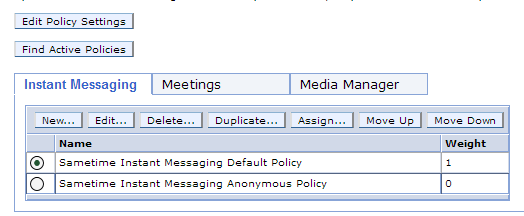
Here’s a screenshot of the Sametime System Console showing where you set up policies, this is stored in the STSC DB2 database.

SSC Policies

From here the policies are pushed down to Community server (Domino) at intervals (approximately hourly) or when the server or policy service restarts so they can be applied to users on login.  This means that clients logging in are receiving policies from the Community server, they aren’t directly looking up policies from the System Console.  If there’s a breakdown in communication between the SSC and the Community server, you can’t push policy updates down to the users.

When installing the Sametime Community Server, the default policy is to allow minimal features through the embedded client, things like screen capture, file transfer and rich text editing are disabled, however I have discovered on two different sites with new 9.0.1 installs, the changes to the default policy were not feeding down to the clients.  The problem was where to track this down.  The policy was right in the System Console but if I turned on POLICY_DEBUG_LEVEL=5 (in the [Debug] section of sametime.ini) I could see that the policy settings being applied did not match those from the System Console.  I even created and deleted additional policies and saw them continue to be ignored through reboots.

So where was the missing piece – somewhere the Community Server was picking up old values but with no stpolicy.nsf there was seemingly nowhere for me to find them.  A separate earlier PMR to IBM pointed me to two new (to me) Xml files on the Community Server file system (domino program directory)

policies.server.xml

policies.user.xml

These are where the System Console policies are written and updated and where the Community server policy service accesses the settings to deploy to users.  The date / time stamp on those files was suspiciously that of the original install, so they hadn’t been updated since then.  The next thing to check is why these weren’t updating.

The first thing to do is test that the Community Server can access and read policies using your wasadmin (or whatever your administrative account it) account.  To do that launch a browser on the Community Server and go to http://sscserver.turtlehost.net:9080/stpolicy/policy/all – you should be prompted for a login, give it your wasadmin name and credentials and the policies should display as a string of values in your browser.  If that works but the policies.server.xml and policies.user.xml files still aren’t updating then the problem may be with how you are telling the Community Server to connect to the SSC.

In the Domino program directory there is a “console” subdirectory and in there is a console.properties file that tells the Community Server how to connect to the System Console.  The contents of that property file are

SSCEncodedAuthorization= [the encoded password for the wasadmin account or whatever your admin account is}
SSCSSLEnabled]=false
SSCHTTPPort=9080
SSCHostName=sscserver.turtlehost.net
SelectedDeploymentId={deployment id of the community server plan in the SSC}
SSCHTTPSPort=9443
LogLevel=FINEST

What’s missing from there is the SSCUserName which identifies the name of the user who is going to login (usually wasadmin) and SSCPassword which contains the unencrypted password for wasadmin (removed and replaced with SSCEncodedAuthorization on first use).  Both of those were required in 8.5.2 versions but don’t seem to be there in 9.0.1  It may be that they shouldn’t be needed but twice now I have seen policies not update after initial install and adding those values to the console.properties , removing the SSCEncodedAuthorization and restarting fixed the problem permanently.  If you add the SSCPassword and remove the SSCEncodedAuthorization you can tell if the connection to the SSC was successful because the properties file will then remove the SSCPassword and replace the SSCEncodedAuthorization.

So there you have it – three missing pieces to help debug policy deployment in Sametime

1. The Domino server based XML files policies.server.xml and policies.user.xml

2. The URL http://sscserver.turtlehost.net:9080/stpolicy/policy/all

3. The console.properties file in the console subdirectory under the Domino program directory