Hidden Pre-Reqs for Sametime VMCU – Surprise!

Building out another Sametime environment this week and I hit a roadblock. Fortunately because I’m a control freak I always read along with the documentation when I do an install, no matter how many times I’ve done it before.  I do this because it’s always possible IBM have updated their documentation since I last saw it…..and so I found,  buried in the documentation here, on the install page of the VMCU.. under

Deploying –

Deploying Common Component –

Deploying Audio and Video –

Sametime Media Manager on Linux or Windows –

Installing the Sametime Media Manager’s VMCU component –

Installing the Sametime the Sametime Video MCU – Step 9)

I find this

Download and install the following prerequisite RPMs if they are not already installed.

For the list of RPMs to install, see the IBM Technote, List of RPMs to install on the Sametime Video MCU

Yes a shiny list of pre-reqs required only by the VMCU and not on the system requirements.  Unfortunately they are all fairly old RPMs and at the current site although the packages are there, they are all newer versions of the ones needed.  The tech note is very specific about that

Important: Each RPM’s file name includes a version number in the format X.X.X.Y, where X is a mandatory level that cannot be changed, and Y is a minimum level. If your RPM has a higher level for the value in the Y position, you can use it.”

So you may have zlib installed but if you have zlib-1.2.7-0.*.x86_64.rpm but the tech note calls for zlib-1.2.3-106.*.x86_64.rpm then you’re out of luck unless you can revert back to zlib-1.2.3. something

I assume the tech note (which is only a couple of weeks’ old) is a result of support having to deal with VMCU problems and determining those exact packages are needed for the VMCU to work.  It’s not a problem so long as you know about it and make sure those packages are in place before you start.

How To Resist Punching Windows 2012 In Its Smug Face

Windows 2012 surely comes from the deranged mind of a resentful Microsoft employee who then got the usability team drunk before releasing it to market. Much of the horror of 2012 was fixed in R2 so why don’t I just use that? Well sadly Sametime 9 does not officially support R2 as a platform only 2012. I’ve done plenty of ST installs since Sametime 9 shipped last Sept but funnily enough all of them on Linux or Windows 2008 R2. So what’s the problem? Let’s go through each of my steps to build….

1. Having checked with IBM support if they’d support Windows 2012 R2 and got a reply that it hadn’t been QA’d but “should work” my customer wanted to try that. Fair enough. I sign on, find IE and start my downloads. Step 1 install DB2
….installer crash
…..repeat many times with different accounts security and options. Installer crash
….remove McAfee (how did that get in there) and try again. Installer crash

Note at this point it isn’t even attempting to install, the installer basically errors immediately. I find similar errors reported for Db2 9.7 back in Windows 2008 R2 early days so we open a PMR and IBM confirm unsupported platform (!)

Pause whilst 4 servers are rebuilt and software is downloaded again

2. Install DB2. Success! But hang on, every time I login there’s no system tray icon and a db2systray error. On digging it appears this is a conflict with Windows 2012 extended security – disable systray or add every user who logs in to either DB2ADMINS or DB2USERS group.

3. But where are the groups? For that I need server settings but that’s nowhere to be found. I tell a lie there’s a 1×1 pixel in the bottom right of the desktop (make sure the entire desktop can fit in your RDP window) hover EXACTLY there for a few seconds (it won’t be instant) and up comes that weird charms right hand side thing including Server Settings – go there and about 5 clicks later I find my way to users and groups..

4. Now test port 50000 is listening. Where’s my command prompt? Where’s my start bar? For that matter where’s my DB2 programs I just installed including my command window? Turns out Windows 2012 did away with all that pesky Start menu “things that aren’t Microsoft” options because why would you need those? (They brought it back in R2). O-Kay

..to call up Start menu press the Windows key. If I do that in my VM through which I have a VPN connection and RDP to the 2012 box – it does bring up the start menu, the start menu to my VM not the RDP box. This is apparently a known problem fixable by pressing Windows key+Alt+Backspace or on my Mac keyboard Cmd+CTRL+Function+back arrow and I have the Metro home screen. Similar to Windows 8 but much less useful since it has no apps listed or even the Command Prompt. Apparently to get that I have to type “run” (into nowhere – just type it) and now I get a line I can enter a search into to find an app

5. Oh and that charms menu we found earlier is the only chance you stand of finding a restart option. Except it’s called “Power” which is WAY more scary but if you go there you can choose restart

6. And don’t get me started on IE and it’s restrictions on concurrent downloads…

Now I have the hang of it it’s fine but how it ever shipped out the door without actually – you know – being tested by real admins beggars belief.

DB2 and SSC built – moving on…

Keeping On Top Of Sametime Fixes

Thanks to Jeffrey Miller @ IBM for posting a blog page with links to all the latest fixes for the Sametime components.  He has offered to keep this up to date and I strongly suggest you bookmark the page (I did) to save trying to navigate through the hundreds of individual items on fix list and work out what supersedes what.

http://www.mymiller.name/wordpress/sametime/sametime-9-0-latest-published-versions/

Problems Deploying Sametime Policies – The Missing Link

I’ve recently run into a problem deploying Sametime Community Server 9.0.1 at two new sites and on an existing 8.5.2 IFR1 site which I’m not 100% convinced is the same issue but as part of my troubleshooting I discovered a missing piece of  policy behaviour that I”m finding extremely useful.

Prior to Sametime 9, policies were deployed on the Community Server and used the database stpolicy.nsf.  That database no longer exists in v9 and later.  In Sametime 8.5.2, if you didn’t deploy the System Console and just had a standalone Community Server you were still using stpolicy.nsf.  As of v9 of Sametime you can no longer do that as stpolicy.nsf no longer exists.   The Community Server must be deployed with the System Console in order to manage policies from within the Console itself. Carry on reading, that’s not the missing link:-)

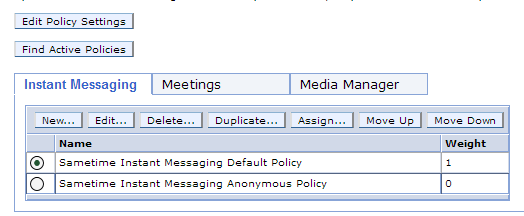
Here’s a screenshot of the Sametime System Console showing where you set up policies, this is stored in the STSC DB2 database.

SSC Policies

From here the policies are pushed down to Community server (Domino) at intervals (approximately hourly) or when the server or policy service restarts so they can be applied to users on login.  This means that clients logging in are receiving policies from the Community server, they aren’t directly looking up policies from the System Console.  If there’s a breakdown in communication between the SSC and the Community server, you can’t push policy updates down to the users.

When installing the Sametime Community Server, the default policy is to allow minimal features through the embedded client, things like screen capture, file transfer and rich text editing are disabled, however I have discovered on two different sites with new 9.0.1 installs, the changes to the default policy were not feeding down to the clients.  The problem was where to track this down.  The policy was right in the System Console but if I turned on POLICY_DEBUG_LEVEL=5 (in the [Debug] section of sametime.ini) I could see that the policy settings being applied did not match those from the System Console.  I even created and deleted additional policies and saw them continue to be ignored through reboots.

So where was the missing piece – somewhere the Community Server was picking up old values but with no stpolicy.nsf there was seemingly nowhere for me to find them.  A separate earlier PMR to IBM pointed me to two new (to me) Xml files on the Community Server file system (domino program directory)

policies.server.xml

policies.user.xml

These are where the System Console policies are written and updated and where the Community server policy service accesses the settings to deploy to users.  The date / time stamp on those files was suspiciously that of the original install, so they hadn’t been updated since then.  The next thing to check is why these weren’t updating.

The first thing to do is test that the Community Server can access and read policies using your wasadmin (or whatever your administrative account it) account.  To do that launch a browser on the Community Server and go to http://sscserver.turtlehost.net:9080/stpolicy/policy/all – you should be prompted for a login, give it your wasadmin name and credentials and the policies should display as a string of values in your browser.  If that works but the policies.server.xml and policies.user.xml files still aren’t updating then the problem may be with how you are telling the Community Server to connect to the SSC.

In the Domino program directory there is a “console” subdirectory and in there is a console.properties file that tells the Community Server how to connect to the System Console.  The contents of that property file are

SSCEncodedAuthorization= [the encoded password for the wasadmin account or whatever your admin account is}
SSCSSLEnabled]=false
SSCHTTPPort=9080
SSCHostName=sscserver.turtlehost.net
SelectedDeploymentId={deployment id of the community server plan in the SSC}
SSCHTTPSPort=9443
LogLevel=FINEST

What’s missing from there is the SSCUserName which identifies the name of the user who is going to login (usually wasadmin) and SSCPassword which contains the unencrypted password for wasadmin (removed and replaced with SSCEncodedAuthorization on first use).  Both of those were required in 8.5.2 versions but don’t seem to be there in 9.0.1  It may be that they shouldn’t be needed but twice now I have seen policies not update after initial install and adding those values to the console.properties , removing the SSCEncodedAuthorization and restarting fixed the problem permanently.  If you add the SSCPassword and remove the SSCEncodedAuthorization you can tell if the connection to the SSC was successful because the properties file will then remove the SSCPassword and replace the SSCEncodedAuthorization.

So there you have it – three missing pieces to help debug policy deployment in Sametime

1. The Domino server based XML files policies.server.xml and policies.user.xml

2. The URL http://sscserver.turtlehost.net:9080/stpolicy/policy/all

3. The console.properties file in the console subdirectory under the Domino program directory


A word of warning about Sametime 9 Community Server

Someone on our Sametime exam team questioned this this morning and I realised it definitely needs to be publicly called out. The Sametime 9 Community Server no longer has any stpolicy.nsf database or a policies view under the old school web based admin. If you upgrade to Sametime 9 you must install the system console (and db2) to be able to manage and maintain policies going forward.

Something for your planning…

Sametime Pt 3: Installing Communicate

As I said when Sametime 9 shipped, I wanted to spend a few weeks working with it and trying to install it and migrate my existing sites before I blogged.  I’m coming near the end of that now and so wanted to share a few things.  This first blog is about Sametime Communicate which includes Domino , Sametime Community Server, DB2, LDAP, Sametime System Console and Sametime Proxy.  It also includes installing the Sametime Advanced server for Persistent Chat and Broadcast Tools but I want to talk about that separately.

Whether you have installed Sametime 8.5x with WebSphere components or not, Sametime 9 and its install is a very different proposition.  I’m going to start by saying that I would never attempt to upgrade an existing install of WebSphere elements.  IBM in fact say that you should do a side by side upgrade and then move the existing databases for the System Console, Meetings, Advanced and ST Proxy (possibly) over.  That basically involves building an entirely new environment and then switching DNS when you’re ready so your users point there.

It’s my nature to be risk averse and in my testing migrating the existing System Console database is a nightmare. The version of DB2 you should use for Sametime 9 is 10.1, so that means that you’d have to upgrade the database as you migrate. In addition, the schema for the Sametime 9 system console database is not the same as for Sametime 8.5x and, though you can theoretically fix that using the scripts IBM supply, I would rather start completely clean.  The only databases I would make an effort to migrate over are the Meetings and Sametime Advanced because they contain data you can’t lose.  Even so there are no good instructions in the documentation for migrating a Sametime 8.5x Meetings database on DB2 9.7  to a Sametime 9 Meetings database on DB2 10.1 – I would contact IBM support in advance and ask for a tech note with instructions because the documentation has some large gaps there.

Of course, if you don’t have Meetings or ST Advanced right now then you can go ahead and create shiny new databases for your new install.

Download: The first step is to download all the software and get it in place.  Sametime 9 uses WebSphere 8.5 which installs differently than with previous versions of Sametime.  It’s actually a much nicer and easier to manage install, but you will need to install WebSphere by itself before you can install any of the Sametime components.  Make sure you download the version of WebSphere and Installation Manager that is part of the Sametime eAssembly or verify very carefully with the system requirements that you are installing the right version.  Sametime 9 uses WebSphere 8.5 (no fix packs) with additional Sametime specific iFixes, all of which can be downloaded together.

DB2: The version of DB2 supported for Sametime 9 is now 10.1 which is very different in UI from DB2 9.7. For starters, there is no longer a Command Center with a graphical interface allowing you to see and manage databases.  You have to install a separate DB2 client if you want to access the DB2 server and look at the databases. You can install that client on any machine that can access the DB2 server.

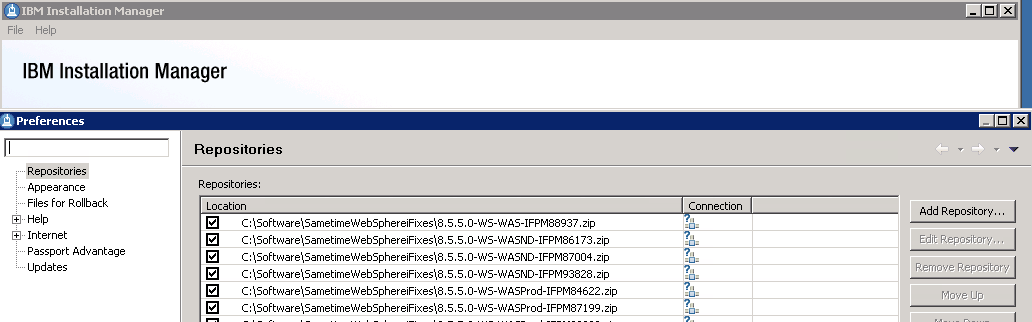
WebSphere:  One of the main reasons an in-place upgrade can’t be done is that the underlying version of WebSphere has changed and can’t be upgraded for Sametime.   We have to install WebSphere cleanly.  When installing WebSphere 8.5 you’ll notice the download comes in three parts.  You’ll need to extract all three parts to the same directory which will then contain folders disk 1, disk2 and disk 3 and a file called repository.config in the root folder.  When you install Installation Manager you can then use it to install WebSphere and every other product (other than Domino and the Community Server). You launch Installation Manager and point to the folder where you put your extracted files, it will do the rest.  It sounds complicated but it’s actually very simple and has a huge advantage in that it’s able to search the IBM site for fixes and updates rather than download them each time.

Launch Installation Manager – Choose File – Preferences from the menu and set up your repositories as I have done below (these point to the fixes which were zip files, these didn’t need to be extracted but I wanted them listed separately so I could check them)

Installation Manager - Adding Repositories

Community Server: When installing the Community Server, IBM have added some much needed additional steps to the documentation providing details on performance tuning Windows 2008 and 2012 networking and securing the server to protect against vulnerabilities discovered in the past few years.  None of this is new, it was all public information in technotes but it’s good to see it brought together in the documentation as part of the deployment instructions.  Don’t be tempted to skip over these steps and come back later, they will double the amount of time it takes to install a Community server (from about a day to about a day and a half) but they are important.

If you are moving from an earlier version of Sametime you will need to be using LDAP if you aren’t already and you can’t use your Sametime Community Server as its own LDAP server, that’s not supported and will  present problems.  In fact you should disable LDAP on the Domino server running Sametime completely.

Sametime Proxy Server: The Sametime Proxy server is used for mobile clients, for awareness in web based meetings, for a browser based IM client and more.  You need to install this as a WebSphere component.  It is IBM’s recommendation that each component have its own VM but I have had success in the past co-locating multiple server elements depending on number of users.  There are a few more  settings some of which were available in Sametime 8.5x but again in technotes, etc and so weren’t well known.  Once a Sametime Proxy Server is installed there are several steps to finish the install, as with the Community server, that will improve performance and security. One interesting item that everyone now will probably come across is that the Sametime Advanced server must use the same SSL certificate as the Sametime Proxy server for awareness to work, making wildcard certificates more suitable to our installs.  Previously I had avoided wildcard certs since WebSphere had issues with them in earlier releases but that appears to be resolved now.

Additional steps on completing the install of Sametime Proxy include making sure you connect to the notification servers for both Apple and Google to ensure mobile devices running iOS and Android can receive updates.  There are also settings to tell the Sametime Proxy server to not connect to the user’s home Community server allowing you to explicitly direct traffic to a dedicated Community member instead.  Instructions for that here.

Finally we usually have a WebSphere Proxy server in front of our Sametime Proxy to handle traffic over port 443.  In the Sametime 9 documentation IBM now seem happy to recommend a reverse proxy for accessing  the Sametime Proxy (I have customer doing that and using products like Netscaler) and only using a WebSphere Proxy in front of a cluster of servers.  The WebSphere Proxy is an intelligent authenticating server that will validate the user prior to directing traffic to a Sametime Proxy server.  If you have multiple Sametime Proxy servers in a cluster, the WebSphere Proxy may redirect the traffic to any of them.  Performance tuning for the WebSphere proxy has been nicely consolidated here.

This was meant to be a short blog entry, obviously I haven’t covered everything but hopefully I have given you some pointers.  More to follow…
My Webcast With Chris Miller on Sametime 9

Just finished a great couple of days with the Salvation Army team here in Orlando talking about all things ICS and CCM (I do loves me some acronyms.. that’s IBM’s Collaboration products like Connections, Sametime, Notes etc plus Connections Content Manager and the Filenet engine).  I don’t often get the opportunity to talk to an international group all working together on a single strategic direction so both the content and the audience (if not the location 🙂 were new and fun.

Next up tomorrow I am on a live webcast with Chris Miller talking about Sametime 9, what we think, what you need, those licensing changes and how to move forward.  If you haven’t registered you can do so here so I hope you can join us.  You just need to pre-register in advance of 10am CST Thursday 26th.


Sametime Launch – Backing Out Of The Race

Today is the launch day for Sametime 9 which means the gold code should be available to download and install.  Usually on gold release day I see a rush on blogs and twitter to download the software get it installed and start talking about it which always makes me feel under pressure.  Added to that is that i’m currently at the airport heading to Florida to do some presentations on Connections Content Management, Quickr migration and Filenet so the chances of me getting a) time and b) decent enough internet to download 15+GB of files is slim.

Once I do get everything downloaded this is the plan

1. Build a new VM with DB2 10 and the System Console on Windows 2008 (because I find DB2 management on Windows easier but that’s just me and it’s changed since we no longer have a control center

2. Build a second VM to install Meetings, ST Advanced code, ST Proxy on RedHat

3.  Build a third VM to install the Media components including the new Video Managers

That should take 2 days from starting download to completing install if all goes well, then I will go back a step, clone my 8.5.2 environment and start testing migration.

I probably won’t blog about my upgrade and migration experiences until the week after next.  Meanwhile I’m focussing in on my Content Management presentations, I’ve learnt a huge amount about Filenet itself as a part of learning CCM in the past few months and I’m excited to be presenting something new (and I hope interesting).  Bring on the 97 degree heat / 90% humidity!

SAMETIME 9 – PT 2: DON’T PANIC!

THIS IS THE BLOG I MEANT TO WRITE – CALL IT A DO-OVER

Still staying within NDA here until Sametime 9 ships, so please bear in mind there are things I can’t talk about in detail until then. I’m not leaving gaps purposefully but did want to post what is public to help people prepare. So let’s get started on what you need to know if you’re an existing Sametime customer.

As I said yesterday the Community Server, which is still based on Domino, runs on Domino 9 and isn’t supported on earlier versions. This may be the time, if you haven’t already, to move your Sametime servers into their own Domino Domain so their server version and updates can be managed outside of the rest of your infrastructure. For those of you who were happily (!) using the old legacy (yes I hate that word too) classic meetings on the Domino server, that’s been removed in Sametime 9. If you want meetings you want the Collaborate license and the WebSphere Meeting server. In the past few years I’ve made sure to tell customers the the classic meetings were purely there for backwards compatibility and transitioning to the new servers but I’m often amazed how many people complain about Sametime Meetings because they don’t realize they are still using the old, applet based, creaky, non-updated codecs – Domino version. I’m glad it’s gone GLAD I TELLS YA! Hopefully that will cut down on confusion.

For those of you not ready to commit to the WAS Meeting server experience, IBM have deployed it into SmartCloud so you can try it out there first if you want

Sametime will not support SAML but will continue to support SPNEGO. SAML would have been nice to streamline the single sign-on technologies we are using with other products but hopefully that’s coming later, support for SAML is still very new within ICS.

The really good news, If you are already experienced in installing Sametime 8.5x then nearly all the components remain the same. You still have a Sametime System Console, a Sametime Proxy Server, a Sametime Meeting Server, a Sametime Advanced Server, etc. All have relatively the same roles as in 8.5x. The big changes are with the Media components where the Packet Switcher has been replaced by two Video components (more when the infrastructure details are completely public but I’ve had this referenced on public calls so we’re good). One important note is that the video components will only be supported on a Linux platform and there is no Windows solution coming. I do understand that the processing and complexity involved in multiperson video requires a lot of development and support so it makes sense thatIBM have opted to focus that on one OS for that one component. Time to brush up your Linux skills people! Again Linux has been my OS of choice for servers for some time now but for some companies wanting video it will require some internal retraining.

The key takeaway is that what you have already learnt and already manage will set you in good stead for Sametime 9.

As far as A/V is concerned, the announcements have been a bit murky so to make it clear – Audio and Video in Sametime Communicate (the IM license) is for 1-to-1 traffic only. Multiperson / Multipoint Video is only available with the Sametime Conference and Complete licenses and the server components that come with those. The server components you install for Communicate will not allow multiperson video (so no installing and accidentally trying it out….).

Lastly I have had 3 people email me today asking about migration strategies and that’s not something I can talk about yet, not least because I haven’t tried myself with gold and I don’t believe in offering advice until I have failed a few times myself :-). Having said that I’m not planning in place upgrades unless I can help it with the exception of the Community server it’s simply easier for me to build in parallel, migrate the Meetings and Advanced data and change the DNS usually. The exception to that would probably be gateway which I never fancy rebuilding from scratch.

So that’s part 2. In Part 3 we’re going to discuss some of the more exciting new features to get you all ready for the big day that’s coming soon.