Upgrading Sametime 9.0.1 – NWTL

I have been participating in IBM’s New Way To Learn (NWTL) initiative with presentations around Sametime 9.0.1.  The presentations are done online and recorded so they can be viewed later and are available with the audio recordings to anyone who joins the NWTL IBM Community.  If you want to watch the presentation and see other great NWTL presentations you can join the community here http://bit.ly/1XXakab

My  first presentation which was last week was on how to upgrade your Sametime 8.5.2 or 9.0 environment to Sametime 9.0.1.  The slides without the audio are on Slideshare and shown below.

In this recorded online session we looked at all the options to upgrade your existing Sametime environment to Sametime 9.0.1. Whether you have only a single Community server on an early Sametime version or an entire infrastructure including audio and video on 9.0 we outlined how to plan for an upgrade and the pros and cons of doing the work side by side vs in place.

Sametime Critical Hit – Missing Servlets

This week I will be presenting on upgrading Sametime to 9.0.1 as part of IBM’s New Way To Learn program (see here for details – requires login ).  In preparation for that I wanted to take an existing environment I had and step through the upgrade of all components using the documentation.  I discovered a few things I’ll share in my presentation and on this blog but one spectacular reoccuring critical full stop can’t move any further what was THAT – problem I thought best to share now.

After successfully upgrading the Community server (I know it was successful because the installer and the logs told me so 🙂  I discovered that the server couldn’t start the policy servlet.  It was hard to see since all the other servlets started fine but if I watched the console as it tried to start I saw a servlet error when loading Policy and a message saying com.lotus.sametime.admin.policy.PolicyServlet could not be located.  Luckily I’ve seen similar errors before in some 9.0 upgrades and on those it was the STCore.jar file which sits in the Domino program directory that was at fault.  I took a backup of that STCore.jar and replaced the one in the program directory with one from a 9.0 server (bear with me, it was just to prove something) and sure enough, the server came up and launched Sametime this time finding the Policy servlet but missing the UserInfo servlet.  

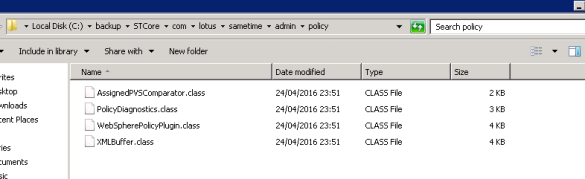
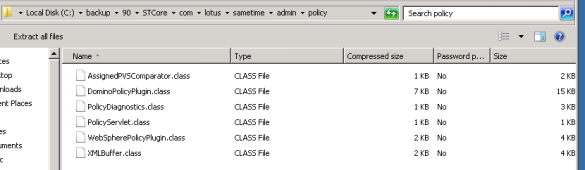
OK so I knew where I was.  The STCore.jar that installed as part of the 9.0.1 upgrade was missing some policy files.  I rename both the new 9.0.1 STCore.jar and the copy of my 9.0 STCore.jar to STCore.zip and then extracted them both so I could compare. I drilled down to the folder it claimed was mising com\lotus\sametime\admin\policy and in the screenshots below you can see my 9.0.1 version only has 4 files whereas my 9.0 version had 6 files including the missing one (PolicyServlet).

skitch 2

The STCore.jar as installed by the 9.0.1 upgrade

skitch

The STCore.jar from my 9.0 server

As you can see, the two missing files include the one the server was looking for.  I extracted the two files and added them to my 9.0.1 folder then compressed everything again as STCore.zip and renamed to STCore.jar.  I copied this new “fixed” (I hope) STCore.jar to the Domino directory and the server started with no problems.  At least none I could immediately see.

I had come across this once before (an incorrect STCore.jar) on an earlier customer upgrade so it’s a recurring problem. I’m not sure what happens during the upgrade process – the file itself is dated 25th April 2016 so it’s not built during the install and isn’t broken for new installs.  So two suggestions

1. Always backup STCore.jar before starting any upgrade along with sametime.ini vpuserinfo.nsf stconfig.nsf etc

2. If your server console is reporting a missing servlet during launch then verify that servlet exists in the  STCore.jar

Sametime 9.0.1 Arrives – Sort Of

Like the sun breaking through the clouds on a gorgeous May holiday weekend, the IBM site has just published a document announcing Sametime 9.0.1 with a release date of May 3.

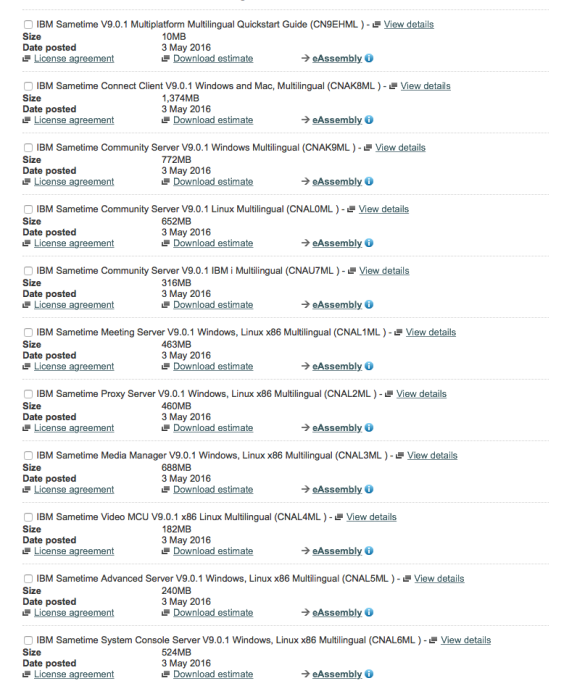
There’s no documentation or even system requirements out there yet but here are some delicious part numbers from the IBM download site to get your teeth into.

I’m not a big fan of installing without documentation but as soon as it appears I’ll be documenting both a clean install and an upgrade process.  If you want any advice on how to upgrade your existing environment feel free to email me.

Screen Shot 2016-05-03 at 14.34.30

Sametime WAS Proxy Stops Working

I’ve had an interesting system down call with an existing Sametime 9.0.1 customer in the past week.  The environment is over 18 months old and consists of every server component in single instances including ST Proxy, Meetings, ST Advanced and all Media components.  The media components were added in Dec 2015 and everything has been fine. The Meeting and Proxy servers both have WAS proxies in front of them to handle traffic over port 80 / 443 separately.  Last week the Meeting node was restarted and the WAS Proxy stopped working.  It would load.  The Meeting server was responding on its own application ports to http(s)://hostname:9080 / 9443 both worked but http(s)://hostname failed with

503 Service Unavailable

The WAS Proxy server showed started.  There were no errors in the logs for that or the ST Meeting server.  Not all WAS proxies were broken because the one in front of the ST Proxy server worked.  In short that error suggests that the Meeting server is offline when we knew it wasn’t and since there isn’t any real configuration for the WAS Proxy other than what node it points to – there was nothing to troubleshoot.  I tried deleting and recreating the WAS Proxy a few times, I tried switching it to use alternate ports 81/444, nothing would fix it.

It took a few days and some combined effort to find.  The WAS team wanted us to upgrade to WAS fixpack 5 but that would mean upgrading 8 working servers in the hopes of fixes one WAS proxy.  There was a suggestion that since the Meeting server was a single, not a cluster, I could just change the Meeting server ports to use 80/443 instead of 9080/9443 and do away with the WAS proxy entirely.  That would get rid of the problem but not fix it, just circumvent it.  I wanted to fix it and find out why it happened.

I had checked the virtual hosts to make sure the hostname / port combination was in the stmeet host and wasn’t anywhere else and discovered that in default_host new wildcard port entries had appeared for ports 80 and 443.  I had already deleted those but that didn’t fix the problem.  How did those port entries appear ? I’ve seen this before when you install new ST servers (as we did with Media in Dec) it come sometimes write virtual host entries to the wrong places.  In fact that was my first guess but after I removed those entries from default_host and it still didn’t fix the problem I was out of ideas.  Then Tony Payne from IBM spotted that the admin_host virtual host which is only used by the SSC had the ports 9080 and 9443 in it when it should only have 8700 and 8701.  Again I assume these were added by the previous server installs and of course I never went to look there because the Meeting server was specifically set to use the STMeet host.

I removed those extra ports from the admin_host virtual host definition and restarted the Meeting node and servers (clearing the temp directories first \profilename\temp and \profilename\wstemp as well as \profilename\config\temp) and that fixed the problem.

So why was the presence of those two ports 9080/9443  (used by the ST Meeting server) that were in a virtual host the ST Meeting server doesn’t even use causing the WAS Proxy to break? Why didn’t the Meeting server itself break and why didn’t the ST Proxy Server which also had a WAS proxy in front of it break?

Turns out that no matter what virtual host mapping you have in place for applications, in Sametime the code checks the admin_host and if a port appears there – it silently disables looking up any other host.  The fact that the Meeting server ports appeared at all in the admin_host meant that the STMeet host was being ignored and the WAS Proxy had no way to direct the traffic.

Unfortunately none of that is visible in the logs or in debug logs which all reported the servers and services using the correct STMeet host.  So it wasn’t something that was able to be seen.  It was a combination of Tony seeing the admin entries and me having had a previous call with a server install which added ports to unwanted virtual hosts that allowed us to find it and fix it.

The ST Proxy server itself wasn’t affected because that server was running on 9082/9445 so its ports weren’t in admin_host and its virtual host therefore wasn’t ignored.

Always good to have a problem fixed and learn a ton of stuff about application behaviour at the same time 🙂
Adding DB2 Datasources Using db2cli

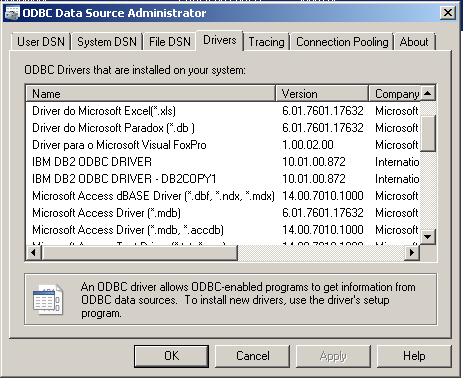
I recently blogged about Advanced Query Tool which I have started using on my VMs instead of one of the heavyweight IBM DB2 client tools.  AQT is a lightweight client that allows me to examine the databases easily but it works by reading in the datasources defined in Windows in the ODBC Manager.  To create datasources you must have some kind of DB2 client or driver installed.  I installed the minimal drivers which gives me this

Screen Shot 2015-03-23 at 11.18.05

Selecting ‘Configure DB2 .Net Data Provider” calls up a GUI interface that walks you through setting up a datasource.  To find the ODBC Manager under Windows 7 or 8 go to Control Panel and click on System and Security then click on Administrative Tools.

Screen Shot 2015-03-23 at 11.20.14

Each driver is configured to connect to a specific server and port.  The configuration is stored in db2cli.ini and db2dsdriver.cfg.  But what if you want to change the server or port address for a datasource.  Or in my case, add multiple datasources pointing to different servers?  Well you could try running the GUI tool again but that decision was made for me when Windows 7 decided to stop running the file and I decided I preferred to have more visibility / control of the configuration.  So instead I chose to use the command line to change and create new datasources.

Open an administrative command prompt and go to the DB2 client install directory (in my case c:\IBM\SQLLIB) and run

db2cli writecfg add -dsn PEOPLEDB_SA -database PEOPLEDB -host db2.turtlehost.net -port 50000

That writes a new datasource called PEOPLEDB_SA (you can call it what you want so long as it’s unique) that is connecting to a database called PEOPLEDB on server db2.turtlehost.net port 50000.  You don’t need to be able to connect to the database when you run the db2cli – it doesn’t validate or test at this point.

Now we need to add this newly created DSN to the Windows registry by running

db2cli registerdsn -add -alldsn

When you’re all done you need to restart Windows for the new registry to be read by AQT and you can go ahead and test the connection and use AQT to connect to the database by choosing the PEOPLE_SA datasource.

AQT Menu


Don’t Miss These Sametime Webcasts From IBM

IBM have three upcoming webcasts in April and May, all of which are definitely worth attending especially if you’re deploying Sametime Media elements.

April 8th   Serviceability Tool for IBM Sametime presented by Jeff Miller from the IBM Sametime team

The serviceability tool reviews your Sametime install , configuration and performance and outputs recommendations for you.

click here for details

April 15th Media Manager High Availability with Tony Payne and Jennifer Wales from the IBM Sametime team

click here for details

May 20th Sametime Troubleshooting Tips & Tricks with Tony Payne from the IBM Sametime team

click here for details

Sametime Audio and Video Problems

This week’s Sametime PMR was a problem with Audio / Video on a newly deployed infrastructure.  This is a long blog but hopefully you’ll find it all useful. The installs all went fine and the peer to peer calling worked, which meant the clients were able to register with the proxy registrar.  However multi user or meeting video was failing.

The first thing you need to know about ST Audio / Video is that there are several moving parts – in this instance all servers are installed on SLES11

  1. Proxy Registrar / Conference Manager – in this environment both these applications are installed into one instance of STMediaServer
  2. Video Manager which is a WebSphere server installed as a standalone node (outside the SSC cell) and requires SolidDB (which the Video Manager installer places and configures)
  3. VMCU – the Video MCU which will handle the multi way video traffic via the Video Manager

The second thing you need to know – and it’s not well documented at all – is that the start order of those elements is vitally important. Start them in the wrong order and you won’t get any audio / video at all (if you check your Sametime client preferences you will not see any A/V components or options).  So what’s the start and stop order?

Start with Video Manager components

  1. Soliddb must be started first using /opt/soliddb/soliddb-7.0/bin/solid -c /opt/soliddb/soliddb-7.0/eval/standalone*
  2. Once started the Video manager can be started using the server name STMediaServer
  3. Start the Video MCU by typing  :  service soft_mcu start (also “status” and “stop”) work
  4. Start the PR/CM WebSphere server STMediaServer

To stop all elements do 4-3-2-1 in reverse

To stop soliddb type solsql then when prompted for login details use the name and password admin
issue the commands (with a semi colon at the end of each line)

admin command ‘force shutdown’;

exit;

*soliddb listens on port 2315 – you can verify it’s running or stopped by doing a netstat. On linux that’s
netstat -an | grep -i “2315”

(the solid.ini file in /opt/soliddb/solidb-7.0/eval/standalone will tell you which port is being used by the server)

The next thing you need to know is that even if it all installed perfectly you must go through the process of exchanging certificates between the PR/CM in the SSC cell and the Video Manager standalone server.  This is documented here and this is where my PMR occurred   The problem was once the certificates were exchanged we lost all video completely.  Even peer to peer.  I assumed it was a small problem, maybe my start order or I wasn’t letting everything have enough time to start but no.. the problem was that we were using a wildcard certificate.

IBM do support wildcards, they have to since the ST Advanced server and ST Proxy server must share a certificate.  Unfortunately we discovered that the underlying video software (which actually comes from Polycom licensed to IBM) doesn’t support a wildcard certificate so when I did the exchange, everything broke.  Once I knew that I reverted the Video servers (PR/CM and Video Manager) to the IBM installed certificate (since the clients don’t directly connect there) and everything started working.

I am waiting to hear back from L3 if using the mixed certificates (wildcard for ST Proxy, Meeting and Advanced and IBM installed for the Video and SSC) will present any problems but right now we are back in business with all ST features.

Sametime Trusted IPs – A Problem That Won’t Go Away

Every since Sametime 8.5.2 was released I have seen a continual problem with Sametime trusted ips that  is still there in Sametime 9.0.1.  The issue is that the trusted ips list (which tells the Community Server which server ips to accept connections from) is now entered into the Sametime System Console in WebSphere and not directly into the CommunityConnectivity document in stconfig.nsf.  This means that since 8.5.2  the trusted ips in the Community Server configuration in WebSphere are then written to the Domino document at intervals.

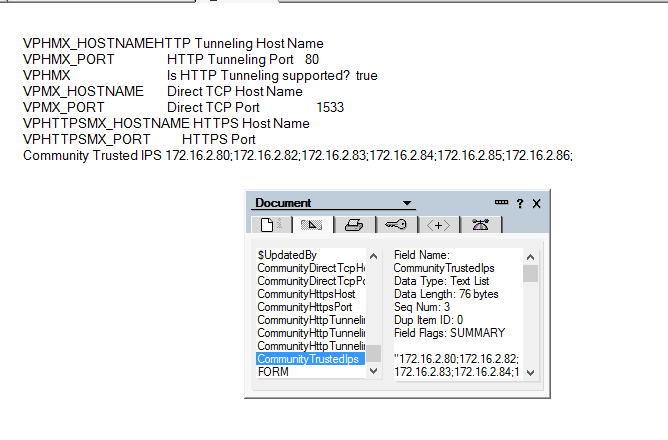
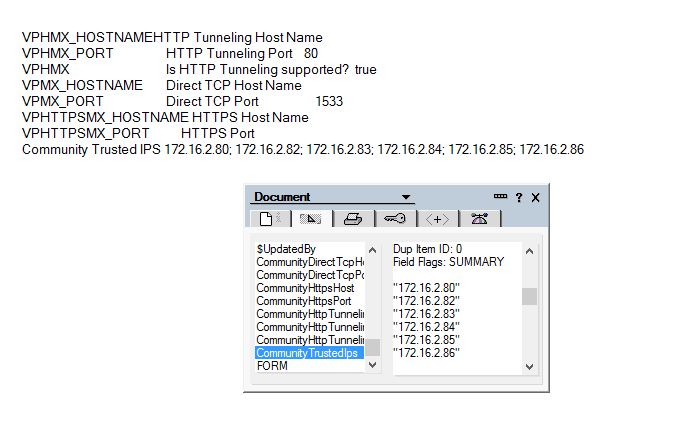
So what’s the problem?  Well when WebSphere writes the list of trusted ips into the Domino document, it does so as a string, not as a list.  A small thing but that means when the Community server restarts the trusted ips don’t work as what Sametime sees is a long string instead of multiple values.  To fix this I wait until WebSphere has updated and then open and save the CommunityConnectivity document which refreshes and parses the string with commas in it into a list (since the field is a multi value list field anyway Domino is smart enough to do that).

Of course I then have to restart the server. Below are the examples of what I mean, first how WebSphere writes the values and secondly how Sametime needs to see them written.

How WebSphere Writes The Values

How WebSphere Writes The Values

How Sametime Wants To See The Values

How Sametime Wants To See The Values

I first opened a PMR on this back in 8.5.2 days and have tried occasionally since then  to open others but never got very far (around the time I am explaining Domino multi value fields to someone in China I lose the will to live). It always occurs if I have several ips to enter, not so much if there is just one or two.  The annoying thing is remembering to check every time I make any change to the Community Server configuration (which isn’t often once it’s setup).  Anyway, this has been my built in workaround for 3 years, it’s not hard and I know one of two other people out there have seen this too so here’s my “fix”…..

Choose Your Installation Manager Carefully….

In both Sametime and Connections builds I have come across customers installing different versions of Installation Manager than that recommended or supplied with the product. The ST and Connections apps are both 32bit so although they will install under a 64bit version of Installation Manager, you will get a warning about it being 64bit.  Don’t ignore that.

There’s no advantage to you choosing 64bit Installation Manager over 32bit on a 64bit platform and worse, since it manages all your installs, if you discover it’s a problem later you can’t fix it because you can’t uninstall it without uninstalling everything it installed itself.  I did a workaround at a customer  I was brought into once where we renamed the IM folder and installed a new 32bit version to make sure ST Media Manager would install but that’s a fudge.

Do yourself a favour, you can’t go wrong with 32bit 🙂