Connections File Sync For Mac (and Windows)

Last week IBM shipped the new Mac Desktop client for IBM Connections which is downloadable from Greenhouse.  It fully supports the syncing of files for on premises Connections servers as well as Cloud servers.   I have tested the File Sync features against one of my own servers as I’m very impressed. You must first configure your server to support File Sync and the instructions for that are here but essentially you need to edit files-config.xml by doing

wsadmin -lang jython -username iscusername -password iscpassword

execfile(“filesAdmin.py”)

FilesConfigService.checkOutConfig(“location”,AdminControl.getCell())

then go find the files-config.xml file and edit it using a text editor.  Look for and edit this section (my example below)

<fileSync enabled="true"> true" url="http://public.dhe.ibm.com/software/dw/ibm/connections/IBMConnectionsMSDesktop.zip"/> true"/> </fileSync>

Then check the file back in using

FilesConfigService.checkInConfig(“”)

Once this is checked in, sync the nodes and restart the Files App. Now the Mac Desktop client can be downloaded and installed.  The users shouldn’t try add the server in their client until Files Sync is enabled or it will have to be re-added.  So what happens once it’s installed

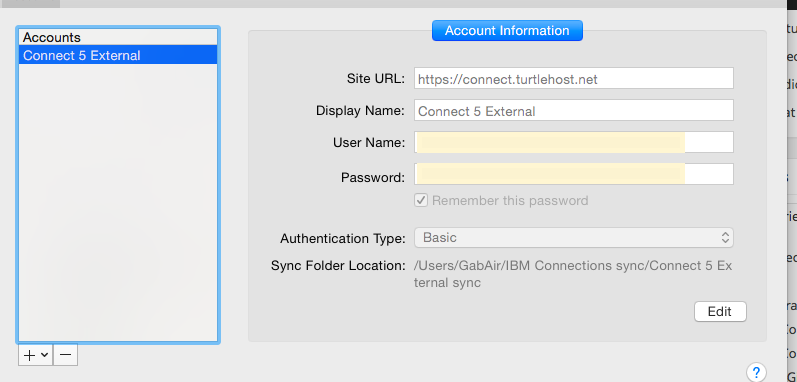
Setup accounts for your Connections servers , either on premises on Cloud. You must choose Basic authentication for on premises servers.

Setup accounts for your Connections servers , either on premises on Cloud. You must choose Basic authentication for on premises servers.


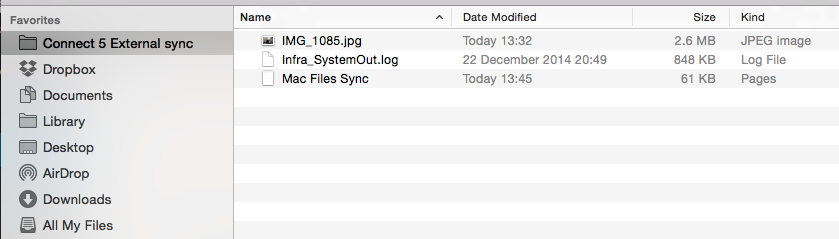
My Finder in Mac now has a folder for my Connections server.  I named the folder when I configured the server and I can have multiple folders for multiple servers

My Finder in Mac now has a folder for my Connections server. I named the folder when I configured the server and I can have multiple folders for multiple servers

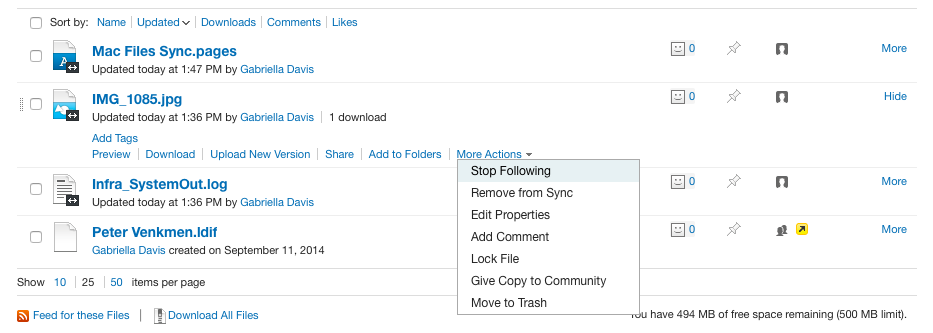
Now I can drag and drop files into my sync folder or save files from any application to my sync folder and the desktop application will upload the file in the background, creating new or adding a new version

Once a file is set up for sync, it will continue to sync until you choose to disable sync for it.

Synced Files

Of course this is also available for Windows desktop clients here ..

Connections 5 Customisations – Problems With Stylesheets

This weekend we upgraded a site with heavy customisation from Connections 4.5 to Connections 5 CR1.  Part of that migration was using the lc-migrate tool to export and import the artifacts and ensuring the customisations (customizations for any google searches!) were in place.  All seemed to be fine for a couple of weeks but then suddenly our custom stylesheet was replaced by the default Connections 5 theme.

That made no sense, no changes were done and the css and images were still in the right place under /customizations/themes/defaultTheme – where they had always been.  Looking at SystemOut everything seemed fine.  I cleared the temp folders (/profiles/AppSrv01/temp and wstemp as well as /config/temp) and tried updating the version stamp using wsadmin (LCConfigService.updateConfig(“versionStamp”,””) and restarting EVERYTHING but no luck.

Luckily my subsequent PMR ended up with Susan who remembered an internal PMR that referenced changes in how customisations work.  Specifically that relative URLs for images no longer work either when used in stylesheets so

(“images/customersite.gif”

has to become

(“/com.ibm.lconn.core.styles.oneui3/gen4Theme/images/customersite.gif”)

The detail for this isn’t in the documentation that I could find but this IBM’er has a great blog piece on it

Paul Godby Connections Customization

In addition the defaultTheme folder (as specified in the documentation) no longer works for custom stylesheets. You have to use a folder called gen4Theme and move the stylesheets in there.

Luckily I was working with the amazing Mark Myers on this who pulled out the stops and got the CSS changed and working (dynamic sizing and all) overnight.

..aaaannnndd we’re back in business.   Go Team!

p.s. the reason it had looked fine for us for weeks across several people/ machines and browsers was caching of the original design elements.

Lots of Good News This Morning

I woke up this morning to two pieces of great news.. firstly according to this blog , my session in the Best Practices track at ConnectED has been accepted.  This session is focussed around all the work I’ve been doing with IBM Connections, helping customers choose from all the features and optional extras that are available and how to deploy them.  So I’m hoping you like the idea and that I will see you in Orlando in January…

Oh and my 2nd piece of good news , my IBM Certification as a Connections 5 Administrator came through, making me proudly one of the first to be qualified on this new exam.

Creating Your Own Connections Confection – Getting The Flavour Right
IBM Connections 5 comes in a variety of exciting flavours – fancy a vanilla install, or maybe you want to add some extra sauce like External users or IBM Docs? A sprinkling of File Viewer and a few Surveys or maybe a dollop of Sametime. In this session we’ll take a look at how to build the right flavour combination of Connections for your business from deciding what features you want through to architecting a solution. We will have plenty of “How Tos” such as how to add external users to your Connections communities securely and what does their experience look like? How much Sametime is just enough? What’s the difference between IBM Docs, File Viewer and EditLive in features and deployment? If you’re new to Connections, planning a move to Connections 5 or even considering what Connections features you might want to add, this is your session, low fat and calorie free!


My Connections Migration Checklist

I’ve been doing a lot of Connections upgrades and migrations in the past few months and since I prefer to do a side-by-side upgrade there are lots of steps along the way to make sure the data is moved and upgraded from the existing servers to the new servers.  The documentation on how to do this in the Knowledge Center is good but there’s a lot of jumping around all over the place between tasks and I have found it helpful for me to have a checklist to make sure I don’t miss anything.

Here’s the checklist I’m using right now with some explanation and links to the documents in the Knowledge Center for each.  My steps aren’t  in the same order as in the documentation but they are the order I use

In theory the migration shouldn’t make changes to your production servers, but I’m risk averse and it’s worth the extra few minutes to make sure you can back out of the migration should you need to.

Before starting anything you should have created new empty databases on your new system using the scripts / wizard from the version you are moving from.  Even if you are moving to Connections 5 from Connections 4, you will need to use the Database wizard for Connections 4 to create the databases we are going to move data into.   That makes sense when you consider we are going to transfer the data over from the existing production environment so the format / structure and schema must be identical from source to target.

Begin by stopping everything, all WAS servers and DB2 (or SQL, Oracle) in your production environment as well as any TDI assemblylines you may have running.  The data migration requires the production site to be down and stay down until the new site comes up, that could be anywhere from a day to 3 days depending on how big your environment is and how much data you have as well as the connectivity between old and new environments when transferring the data.

Now let’s back everything up – just get the existing production configuration data somewhere you can access it and make sure you don’t lose any data during migration so backup all the DB2 databases as well as the Connections shared data /Connections/data.. /shared (I personally like to backup /Connections/data which gets local as well but that’s just me.

  • Backup Connections Dmgr Profile by running backupconfig.bat /.sh from the /Dmgr01/bin directory.  This will stop the Dmgr server if it’s not already stopped or if you don’t use the -NoStop parameter. (no need to backup Installation Manager when doing a side by side migration)
  • Backup the Connections shared data
  • Backup customisations somewhere you can access them for reading and manual copying over to the new environment
  • Run the migration.bat / sh to export the Connections configuration data ready for import in your new environment.  This includes the LotusConnections-Config.xml and application specific data.  This is exported to a directory you then copy to your new environment where you can import it
  • Migrate each of the databases, one at a time.  Each one has a pre-script to run to prepare the database, then at least 2 migration scripts, one to move the data and one to clear the scheduler entries on each database.   All the instructions are here however there are a couple of things to bear in mind.

When running the scripts I like to add >filename to the end of each command to pipe the output to a log file.  I usually create a “Logs” directory and call the file by the name of the script _app name e.g predb_blogs.txt.  This way I can check if the scripts ran OK by reading the logs and I have something to send to IBM if it comes down to opening a PMR

See my earlier blog for potential syntax issues running the scripts

To run dbt.jar which migrates the data you create an XML file and a matching Batch file for each application.  I like to create all of these at once and add them to a directory from which I can run for each application (again with the >logfile at the end).  Below are examples of XML and batch files I modify to use (I’ve avoided putting in carriage returns as that messes things up should you copy out of here)

XML (e.g. files.xml below)
<dbTransfer xmlns:xsi=”http://www.w3.org/2001/XMLSchema-instance“><database role=”source” driver=”com.ibm.db2.jcc.DB2Driver” url=“jdbc:db2://sourcedbserverhost:50000/FILES” userId=“db2admin” schema=“FILES” dbType=“DB2”/> <database role=”target” driver=”com.ibm.db2.jcc.DB2Driver” url=”jdbc:db2://targetdbserverhost:50000/FILES” userId=“db2admin” schema=“FILES dbType=“DB2”/> </dbTransfer>

BATCH (calls files.xml)
“e:\install\connections\wizards\jvm\win\jre\bin\java” -cp e:\dbt_home\dbt.jar;e:\ibm\sqllib\java\db2jcc.jar;e:\ibm\sqllib\java\db2jcc_license_cu.jar com.ibm.wps.config.db.transfer.CmdLineTransfer -logDir e:\dbt_home\logs -xmlfile e:\dbt_home\files.xml -sourcepassword typedb2passwordhere -targetpassword typedb2passwordhere

  • Upgrade database schemas.  Once all the migrations scripts have been run (don’t forget the clearScheduler and run/updateStats where needed) you can proceed to upgrade the databases.  I like to back them up one more time before running the upgrade though, but that’s just me.  If it took a day or more to migrate the data I don’t want to do that all again.There are two ways to update the databases on your new target server.  Either using the provided (Connections 5) database wizard and choosing “Upgrade” or by running manual scripts.  I prefer to run the scripts manually so I can see what’s going on and IBM recommend that for the Homepage at least you run the script manually rather than use the Wizard.

    Instructions for doing both Wizard and Manual methods are here .  The biggest issue with running the scripts manually is that there are slightly different syntaxes depending on which version you are coming from and it’s fiddly getting the right one, I still prefer it although  I have used the Wizard for several of the applications and it has worked fine.

  • Once you’ve upgraded all the databases, the Homepage requires another step and that’s to do a java migration of its data. This ensures the format and content of each individual’s homepage matches that required for Connections 5.  The Homepage database is by far the largest of all those used and this could take significant time.  Below is an example of the command I run (again I have taken out carriage returns and invalid quotes etc

e:\install\connections\wizards\jvm\win\jre\bin\java -Dfile.encoding=UTF-8 -Xmx1024m -classpath e:\ibm\sqllib\java\db2jcc.jar;e:\ibm\sqllib\java\db2jcc_license_cu.jar;e:\install\connections\wizards\lib\lic.dbmigration.default.jar;e:\install\connections\wizards\lib\commons-logging-1.0.4.jar;e:\install\connections\wizards\lib\news.common.jar;e:\install\connections\wizards\lib\news.migrate.jar com.ibm.lconn.news.migration.next50.NewsMigrationFrom45to50 -dbur1 jdbc://db2://targetdb2hostname:50000/HOMEPAGE -dbuser db2admin -dbpassword targetdb2password >java.out.log 2>&1

  • Importing artifacts.  Using the directory and contents created earlier one when we exported the Connections artifacts, we can now import them into our new Connections environment.  We’re basically doing the reverse of what we did to export but this time running migration.bat /sh lc-import.
  • CommunitiesMemberService.syncMemberExtIdByLogin(“wasadmin”)
  • Migrate or Rebuild the search index.  Migrating can be done if the source version is 4.5 because the search index structure is the same however I prefer to rebuild cleanly if I have the time
  • FilesDataIntegrityService.syncAllCommunityShares()
  • Custom profiles. If you have custom profile settings (strings, languages, profile types) in your existing environment and that is 4.0 these will need to be migrated / converted to the Connections 5 format.  There are also settings that should have come over when restoring your artifacts that it is worth validating

The items below tend to be optional depending on what is installed in your current environment but if these elements exist currently they will need to be migrated too

Cognos

Connections Content Manager

Media Gallery

That’s my list anyway.  Obviously the Knowledge Center is the definitive source for all you installation / documentation needs 🙂
 

Getting Around Documentation Errors With Connections Scripts

I’ve been meaning to write this blog for a while.  And by “a while” I mean since v4 of Connections.  IBM supply a series of scripts with the Connections install that are found in the install directory under the folder connnections.sql.  These scripts are used for a variety of things but most people will have to use them if migrating from an earlier version of Connections to a new one.  The scripts are under the database type folder for each application so the scripts for the Blogs database on DB is in

/connections.sql/blogs/db2

Now you can put those scripts where you want obviously, but that’s where you will find them.  In that folder there are lots of files that are basically a series of SQL commands written out for you.  Each command line terminates with a ; or a @ to identify that’s the end of the command.  When running these commands with db2 you use a different syntax depending on whether the SQL file ends each line in a ; or @.  For example

;  means our command line is written as “db2 – tvf {filename} >{writetoalogfile} “

@ means our command line is written as “db2 -td@ -vf {filename} >{writetologfile}”

Writing to a log file isn’t compulsory but I always do so I can check if the script ran OK.

The problem is that on the  IBM Documentation site they often give the wrong syntax for each database (oh and they aren’t consistent) so on this page the instructions for the profiles database are

“db2 -tvf predbxferxx.sql”

If you run that (and the clue is it takes less than a second which is suspicious) you will see no errors but if you check your log you will see a single line saying

“End of file reached while reading the command”

That basically means we used the wrong line terminator, we told it -tvf so it looked for a ; at the end of each line but if we open the predbxfer45.sql we can see each line ends in @.  If we change the command to

“db2 -td@ -vf predbxfer45.sql”

it runs perfectly.

It would be nice if the IBM documentation was correct but it’s a simple problem to catch and fix.

One Dumb And Two Smart Things – Calling That A Win

Last night / yesterday afternoon I was building a Connections server (for an internal project) when I wiped out hours of work doing something dumb.  I had spent some time downloading all the software and fixes to the server which was Windows 2008 R2 (because I have plenty of licensing for that)  and then I installed DB2 and WAS and created the WAS profile.  Next step was to run dbwizard.bat to create the databases but that’s where weird stuff started happening.  The dumb bit had already occurred I just hadn’t noticed it yet…..

The DBWizard would launch and let me move past the first screen but no amount of clicking on “Next” would let me move off the “Create, Edit, Update” screen.  Clicking ‘Back” actually took me to the next screen (!) but I couldn’t get any further than that.  I refused to believe it could be a DB2 problem because at the point in the Wizard it had no idea I was running DB2 as I hadn’t chosen my database platform because I couldn’t get to that screen.  I started from the assumption that since DBWizard is a java program my version of Java (brand shiny new updated yesterday) was incompatible.  So cue much time spent uninstalling and installing different java versions to try and fix it with no luck.  I could have run DBWizard from another machine but I wanted to fix whatever the underlying problem was.  Then I realised the dumb bit, I had installed 32bit DB2 on a 64bit platform which DB2 is fine with but the DBWizard really isn’t.  I don’t know if that was my problem (I still can’t believe on the early DBWizard screen it even knows to check) but in my attempts to fix uninstall and cleanup DB2 , I corrupted the Windows registry.  At least that’s what I think I did because on restart Windows would only boot to a grey branded screen with no login, even if I chose one of  the Safe modes or tried booting from a CD.

Since this work was about installing Connections and not fixing Windows I decided not to waste more time on it and startover.  Here come the two smart things.

1. I have a pre built Windows 2008 R2 VM disk with a 40GB C drive I use to clone and make new VMs.

2. I had downloaded and installed everything to a separate 100GB virtual disk

I detached the virtual disk from the broken VM

deleted that VM from the host entirely

made a copy of my simple VM disk

created a new virtual machine using that copy as its disk

added the 100GB virtual disk to that new VM

opened it up and changed its ip to match that of the VM I just deleted

and I was back in business.  Total time elapsed about 7 minutes

Of course I now had a D drive with software on it the Windows registry new nothing about but it was simple to just delete those installer folders and reinstall (the right) DB2, WAS etc and get back on track.  Certainly much simpler than trying to fix a broken Windows server!

Adding External Users To Connections 5

Last week I did a presentation at Icon UK on the new Connections 5 feature that allows you to add external users into your Connections environment.  To write the presentation I built my own environment multiple times using different techniques for adding external users and discovered some interesting stuff along the way.  Since the presentation doesn’t have my commentary on it i’ll try and summarise that here

1. On page 6 are a list of things an external user can do according to IBM documentation.  Some of the items on that page (in italics) actually didn’t, in any of my testing, work.  This is because there are conflicting security limitations on what a user can’t do (see items in bold on page 7)

So for example although the documentation states that an external user can share files with people or communities, it also states that they can’t use type ahead or directory lookups.  Preventing type ahead and directory lookups actually disables the ability to share files with a user since there’s no way to lookup a user.  Sharing files with a Community works fine.

2. The external users can be added via an LDAP attribute from your LDAP server or by a separate LDAP server or branch.  Although an entirely separate LDAP server is more secure and in my opinion preferable, it must use a search base which means flat names in Domino can’t be part of the external LDAP source.

To counteract this in one instance I faked a hierarchy as the users were created (using a simple Xpages app to allow people to self register and manage their own passwords and setting a fake hierarchical name for them in the background).  In the other instance I used the same LDAP source as for internal users but with a specific attribute set to the word “external”

In general the external users feature has been locked down securely enough that i’d highly recommend it for inviting people to work with your Connections communities .

IHS Errors or WHY Won’t Connections SSL Work

It happens.  Usually when I’m building a test server on a single box and i’m building in a hurry.  I get everything configured and installed and take a brief stopover at IHS configuration on my way to completing security setup.   I create my keyfile using ikeyman, I import my trusted root certificates from whichever CA I plan to use and I generate a personal certificate.  I think it’s all working fine then I restart IHS and one of two things happen

1. IHS starts but only for 80 not 443

2. IHS starts on both 80 and 443 but I get an error 500 trying to access any Connections page over SSL

The logging on the 2nd error isn’t terribly useful and it’s tempting to run around checking the module mappings and LotusConnections-Config.xml for the source of the problem.  For some reason, even though I’ve seen each of these lots of times, my brain insists on starting at the beginning with debugging and looking at the logs.  So this blog is for you brain – next time just come here and check this first

1. The solution is often that the keyfile either isn’t where I told httpd.conf it was OR where the plugin-cfg.xml is looking for it.  Take time to go check the plugin configuration under your webserver in the ISC and make sure the name and location are what you think they are.  Then go and actually make sure they are there

2. A handshaking error caused by either the signer certificates used by the application servers not being imported into the keyfile OR (and this one drives me batty) installing everything on one box with the same hostname for the WebSphere servers as the IHS server.  In the 2nd instance you can’t have two totally different certificates both claiming to be the same hostname trying to talk to each other.  I export the certificate from WAS trusted key store and import it into ikeyman (or import into WAS and map each of the servers).

In general when I’m configuring IHS it’s always down to a file not being where I told httpd.conf it was.

Here are my rewrite and plugin lines for 64bit IHS on this particular Linux box

LoadModule was_ap22_module “/opt/IBM/WebSphere/Plugins/bin/64bits/mod_was_ap22_http.so”

WebSpherePluginConfig “/opt/IBM/HTTPServer/Plugins/config/webserver1/plugin-cfg.xml”

RewriteEngine On RewriteRule ^/$ https://<hostname>/homepage [R,L]

Update: I should have linked to this document which I found in the past and is always useful. Troubleshooting IHS

Connections 5 SPNEGO Confusion – Dogs & Cats Living Together!

I have been working on a PMR for Connections 5 trying to configure SPNEGO , foolishly as it turns out using the IBM Connections 5 Knowledge Center.  I have just finished a 3hr screenshare with WebSphere security support who started the call asking why on earth I was configuring it the way I was.  When I showed them the documentation on the Knowledge Center for configuring SPNEGO I was asked “why are the Connections team saying to do that, that will never work”. Imagine my joy having spent nearly 2 days working on it before opening a PMR.

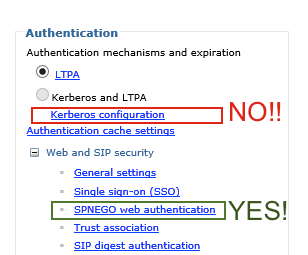
They are going to fix the knowledge center documentation hopefully but in the meantime this handy dandy little screenshot should help you

BADSPNEGO

The incorrect documentation (and hopefully it will be fixed before you even click on it) is here

In addition the WebSphere security team disagree with the Connections team on creating a keytab for the IHS server only in any circumstances which this document says to do

Finally they also disagree on requiring the connectionsAdmin account to be the one that is used to start Windows services which may be a bad use of wording on this document here (See item 6).   They have advised that as far as SPNEGO is concerned any AD account would do.

They have also advised that you should make sure there are no other SPNs for that hostname floating about (I don’t have visibility of AD but it’s one for the customer to check)

I have asked for definitive documentation from the Connections and Websphere teams on how they want this configured before moving forward

Anyone Fancy An Indispensbile Tool For Connections Migrations?

When working with Connections so much of the configuration is done in XML or properties files on the file system of the servers.  That means, no matter how organised I try and be, I often find multiple copies of files each with different date/time stamps or even with different names (LotusConnections-Config.PreNewNode for example) for me to identify.  This is especially true with the TDI syncing where I often end up creating multiple TDISol directories over the course of a deployment as customers want to change what data syncs, how and where.

The problem with this is that everything is very reliant on how well the files are commented and more often than not I’m coming in behind someone else so I have to look at files with no commenting at all or commenting that only makes sense to the person who wrote it.

As an admin I have never really needed to compare the contents of one file with another to spot the differences (that’s more a coding problem) but with Connections I need to use that technique all the time.  Take my work this week for instance, upgrading a Connections 4.5 server to Connections 5 .

The first question is, looking at the TDISol directory, have any of the properties files I need to update changed since 4.5. If not then great, I can just add new servers and passwords and away we go.  If they have I have to merge the old settings into the new and I’d rather not rely on me reading each line and visually comparing them across several dense pages.  To do this my favourite tool is Kaleidescope  for the Mac.  It’s not free (it’s about 70 dollars) but it has a great UI , features and does the job.  I’ve been using it for a couple of years and they keep adding new features.  It also does a great job on comparing and spotting changes in images – or what I call the “hey that’s been photoshopped” feature.


Kaleidescope


In the picture above i’m comparing the profiles_tdi.properties file from the 4.5 install to a new one for the 5.0 install to make sure I don’t miss any custom settings.  I did the same with mapdb_repos_from_source.properties and mapdb_repos_to_source.properties.  As you can see from the screenshot (the one on the left being the 4.5 one), any additions are in green, deletions in red and changes in purple (with the actual changed words being darker purple).  This makes it very easy for me to spot what needs to be changed from one file to the other.  It’s not perfect , if the format of the file means that some lines appear a page further down in one document vs the other then you will see markup for both but it’s a lot better than any hope I have to spot all the differences myself.