Connections CCM Problems – Libraries not “quite” working

My 2nd PMR this week was for Connections and Content Manager.  I had already installed FileNet in the test environment for this customer and the only difference between test and production was really the number of servers with CCM having its own dedicated VM.  The install completed and I tested uploading files, editing files, clicking “like” etc and it all seemed OK so I handed it over to the customer.

Turns out there was a problem.  No library , once created, could be edited.  Not the title, not the security, nothing.  Any editing threw up an error

All the installs were correct.  The updates had applied OK.  The correct versions of FileNet were running.  We even checked the security on the ICObjectStore in FileNet’s ACCE administration interface.  Nothing looked wrong but the error message was strange

“The requested approval  action could not be performed because the library, CCM Libraries, is not enabled for document approval. The library’s repository, ICObjectStore, might not have the document approval addon installed, or the library might not be a teamspace. Contact your administrator and report this error message”

As part of the investigation trying to find out what was wrong (and whilst waiting for L3 to review) I saw this option when I right clicked on the ICObjectStore in ACCE – add on features.  AddOnFeatures


So , whilst we waited, the IBM support guy (can I name him here?) sent me a list of all his add ons and I compared them to all of mine and sure enough about 8 were missing.  I added those and everything started working.  Why those 8 failed to install is another matter since all the logs said everything installed fine.  Interestingly at this customer we’ve had trouble deploying applications in the past due to network timeouts between the Dmgr and other servers so I do wonder if that was it (for instance CR3 seemed to install but several of the applications were corrupted when we tried to use them and I had to install them again manually).

An interesting one and a nice easy fix.  I’ve added screenshots below of all the add ons we should have had so you can compare if you find a similar problem.
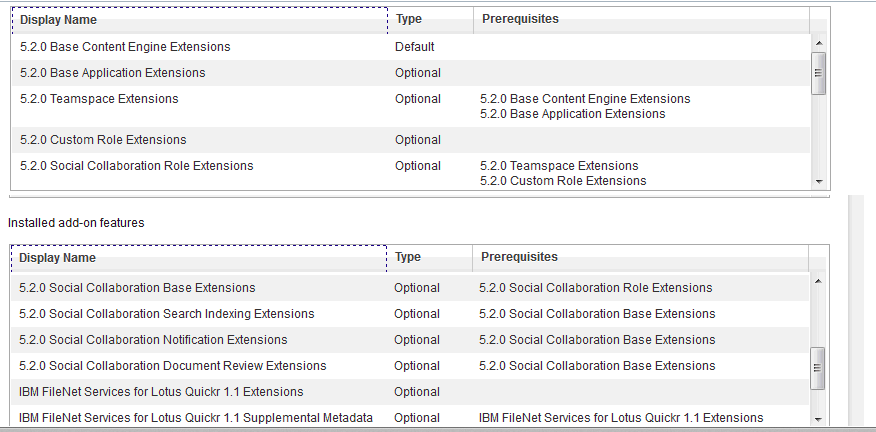
Addons Pt1 Addons Pt1


Sametime Audio and Video Problems

This week’s Sametime PMR was a problem with Audio / Video on a newly deployed infrastructure.  This is a long blog but hopefully you’ll find it all useful. The installs all went fine and the peer to peer calling worked, which meant the clients were able to register with the proxy registrar.  However multi user or meeting video was failing.

The first thing you need to know about ST Audio / Video is that there are several moving parts – in this instance all servers are installed on SLES11

  1. Proxy Registrar / Conference Manager – in this environment both these applications are installed into one instance of STMediaServer
  2. Video Manager which is a WebSphere server installed as a standalone node (outside the SSC cell) and requires SolidDB (which the Video Manager installer places and configures)
  3. VMCU – the Video MCU which will handle the multi way video traffic via the Video Manager

The second thing you need to know – and it’s not well documented at all – is that the start order of those elements is vitally important. Start them in the wrong order and you won’t get any audio / video at all (if you check your Sametime client preferences you will not see any A/V components or options).  So what’s the start and stop order?

Start with Video Manager components

  1. Soliddb must be started first using /opt/soliddb/soliddb-7.0/bin/solid -c /opt/soliddb/soliddb-7.0/eval/standalone*
  2. Once started the Video manager can be started using the server name STMediaServer
  3. Start the Video MCU by typing  :  service soft_mcu start (also “status” and “stop”) work
  4. Start the PR/CM WebSphere server STMediaServer

To stop all elements do 4-3-2-1 in reverse

To stop soliddb type solsql then when prompted for login details use the name and password admin
issue the commands (with a semi colon at the end of each line)

admin command ‘force shutdown’;

exit;

*soliddb listens on port 2315 – you can verify it’s running or stopped by doing a netstat. On linux that’s
netstat -an | grep -i “2315”

(the solid.ini file in /opt/soliddb/solidb-7.0/eval/standalone will tell you which port is being used by the server)

The next thing you need to know is that even if it all installed perfectly you must go through the process of exchanging certificates between the PR/CM in the SSC cell and the Video Manager standalone server.  This is documented here and this is where my PMR occurred   The problem was once the certificates were exchanged we lost all video completely.  Even peer to peer.  I assumed it was a small problem, maybe my start order or I wasn’t letting everything have enough time to start but no.. the problem was that we were using a wildcard certificate.

IBM do support wildcards, they have to since the ST Advanced server and ST Proxy server must share a certificate.  Unfortunately we discovered that the underlying video software (which actually comes from Polycom licensed to IBM) doesn’t support a wildcard certificate so when I did the exchange, everything broke.  Once I knew that I reverted the Video servers (PR/CM and Video Manager) to the IBM installed certificate (since the clients don’t directly connect there) and everything started working.

I am waiting to hear back from L3 if using the mixed certificates (wildcard for ST Proxy, Meeting and Advanced and IBM installed for the Video and SSC) will present any problems but right now we are back in business with all ST features.

The IBM Support Overnight Mystery

Several days this week I have worked on a different PMR (two ST bugs one CCM more on later) with people from IBM support who have been helpful, informed and as curious about the problem as I was (or faking it really really well) . We’ve had screen shares, investigated the problem and left it at the end of day the as “escalate to L3 development”.

Then each morning I wake up to an overnight email from someone new saying they are in charge of the PMR but who has seemingly never seen the problem and is asking me to do basic stuff like send in logs or apply a patch that was already checked (and updated in the PMR) at least a day earlier.

I understand the difficulties in providing 24×7 support and I’m sure there’s an alert somewhere that gives someone a kick overnight and tells them I HAVE to be followed up even if there’s no action task back from L3. Clearly there is a process for “following up” out of hours which does exactly that and only that based on the original call. I now reluctantly set those emails to ignore , or respond asking them to read the PMR history, but I worry what customers do .

Do they run around in circles doing this repeat “make work” until someone who has read the actual updates comes in ?

Oh and two out of the three PMRs are now closed. I will blog both which are interesting and apparently a googlewhack of problems (we were the first to report) later today. :-). So thank you to everyone who worked with me on them this week.

Connections 5 Worksheet – In Case It’s Useful

The IBM wiki and now Knowledge Centre publish a worksheet you can use when installing Connections to help document your work.  I have used  this,  or a version of this,  when I’m doing installs but unfortunately although the wiki (4.5) version can be copied / pasted straight into Excel and retain its table format, the Knowledge Centre Connections 5 one here  doesn’t format properly when I take it into a spreadsheet.  Rather than spend time trying to work out how to fix it I created my own spreadsheet and since I’m using it this week for another install I thought it would be useful to share here.

It’s in Excel format, one tab per product.  Fill this in as you install and you have ready made documentation.

Connections5Worksheet

Hello IBM Support – How Can I Confuse You?

It’s been a busy week of opening PMRs across various products and customers.  The IBM PMR system has nuggets of hilarity in it if you just decide to go with the flow….This morning I needed to open a PMR for a customer in the US.  My problem is that under my IBM registration I am listed as the admin or authority for several different customer numbers* but can only open a PMR for two of them.  No idea why just those two.  I also have , several times, opened a call and only had “Save As Draft” instead of submit as an option – hilariously if you “Save As Draft” you never see it again.  You only have to learn that lesson two or three times….

Finding the right number to call (because I have to call the right IBM centre for the region each customer is in) I placed the call ,  since it was out of hours , let’s just say I didn’t get their “A” team.

Problem No.1 the guy I spoke to had not heard of IBM Connections Content Manager and could not find it on their system to log a call against

Problem No.2  he did not understand my summary sentence of the problem although he told me he had written it down, when I went to look online the PMR had no assigned product, title or description.

My favourite bit though was this conversation

Support: So shall I open this as Severity 1
Me: Well no, it’s not a system down , it’s loss of feature so that Sev 2
Support: If I don’t open it as Severity 1 no-one will contact you for at least 24 hrs. Do you not want to be contacted today?
Me: Well yes I do want to be contacted today but it’s not a Severity 1
Support: I will go ahead and open it as Severity 1 so you are contacted today
Me: But my system isn’t down – that means system down
Support: I will uncheck the “System Down” box
Me: {confused} OK.

I then went in online updated it and changed it to Sev 2.  Oh and I was contacted by support already.

*yes I know I can ask a customer to approve me as a BP but most customers know the process for adding me to their accounts like they do other internal users and so that’s what the majority have done.  I choose not to ask them to jump through IBM hoops just to make my life easier.

Sametime Trusted IPs – A Problem That Won’t Go Away

Every since Sametime 8.5.2 was released I have seen a continual problem with Sametime trusted ips that  is still there in Sametime 9.0.1.  The issue is that the trusted ips list (which tells the Community Server which server ips to accept connections from) is now entered into the Sametime System Console in WebSphere and not directly into the CommunityConnectivity document in stconfig.nsf.  This means that since 8.5.2  the trusted ips in the Community Server configuration in WebSphere are then written to the Domino document at intervals.

So what’s the problem?  Well when WebSphere writes the list of trusted ips into the Domino document, it does so as a string, not as a list.  A small thing but that means when the Community server restarts the trusted ips don’t work as what Sametime sees is a long string instead of multiple values.  To fix this I wait until WebSphere has updated and then open and save the CommunityConnectivity document which refreshes and parses the string with commas in it into a list (since the field is a multi value list field anyway Domino is smart enough to do that).

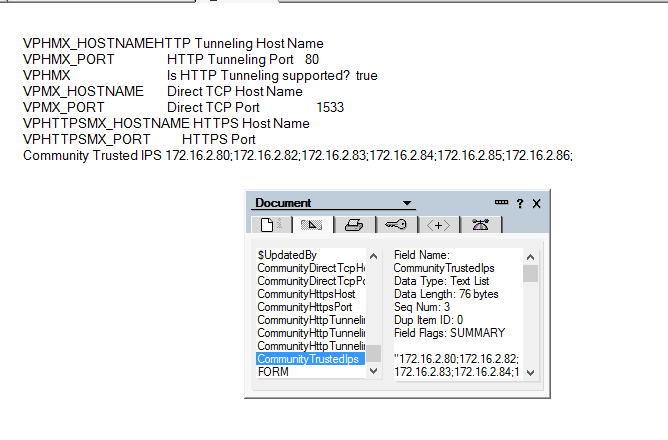
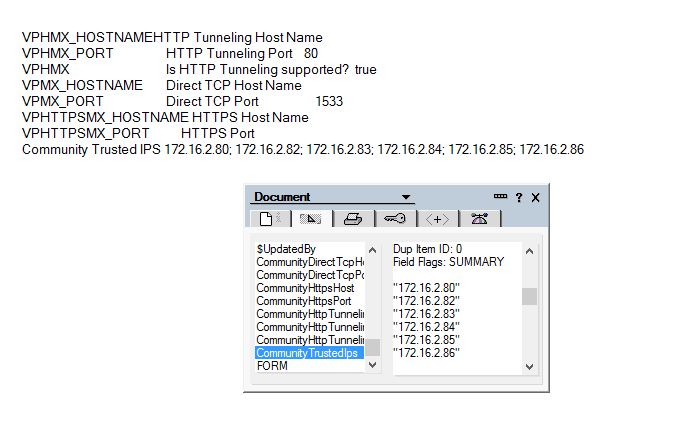
Of course I then have to restart the server. Below are the examples of what I mean, first how WebSphere writes the values and secondly how Sametime needs to see them written.

How WebSphere Writes The Values

How WebSphere Writes The Values

How Sametime Wants To See The Values

How Sametime Wants To See The Values

I first opened a PMR on this back in 8.5.2 days and have tried occasionally since then  to open others but never got very far (around the time I am explaining Domino multi value fields to someone in China I lose the will to live). It always occurs if I have several ips to enter, not so much if there is just one or two.  The annoying thing is remembering to check every time I make any change to the Community Server configuration (which isn’t often once it’s setup).  Anyway, this has been my built in workaround for 3 years, it’s not hard and I know one of two other people out there have seen this too so here’s my “fix”…..

Choose Your Installation Manager Carefully….

In both Sametime and Connections builds I have come across customers installing different versions of Installation Manager than that recommended or supplied with the product. The ST and Connections apps are both 32bit so although they will install under a 64bit version of Installation Manager, you will get a warning about it being 64bit.  Don’t ignore that.

There’s no advantage to you choosing 64bit Installation Manager over 32bit on a 64bit platform and worse, since it manages all your installs, if you discover it’s a problem later you can’t fix it because you can’t uninstall it without uninstalling everything it installed itself.  I did a workaround at a customer  I was brought into once where we renamed the IM folder and installed a new 32bit version to make sure ST Media Manager would install but that’s a fudge.

Do yourself a favour, you can’t go wrong with 32bit 🙂

Hidden Pre-Reqs for Sametime VMCU – Surprise!

Building out another Sametime environment this week and I hit a roadblock. Fortunately because I’m a control freak I always read along with the documentation when I do an install, no matter how many times I’ve done it before.  I do this because it’s always possible IBM have updated their documentation since I last saw it…..and so I found,  buried in the documentation here, on the install page of the VMCU.. under

Deploying –

Deploying Common Component –

Deploying Audio and Video –

Sametime Media Manager on Linux or Windows –

Installing the Sametime Media Manager’s VMCU component –

Installing the Sametime the Sametime Video MCU – Step 9)

I find this

Download and install the following prerequisite RPMs if they are not already installed.

For the list of RPMs to install, see the IBM Technote, List of RPMs to install on the Sametime Video MCU

Yes a shiny list of pre-reqs required only by the VMCU and not on the system requirements.  Unfortunately they are all fairly old RPMs and at the current site although the packages are there, they are all newer versions of the ones needed.  The tech note is very specific about that

Important: Each RPM’s file name includes a version number in the format X.X.X.Y, where X is a mandatory level that cannot be changed, and Y is a minimum level. If your RPM has a higher level for the value in the Y position, you can use it.”

So you may have zlib installed but if you have zlib-1.2.7-0.*.x86_64.rpm but the tech note calls for zlib-1.2.3-106.*.x86_64.rpm then you’re out of luck unless you can revert back to zlib-1.2.3. something

I assume the tech note (which is only a couple of weeks’ old) is a result of support having to deal with VMCU problems and determining those exact packages are needed for the VMCU to work.  It’s not a problem so long as you know about it and make sure those packages are in place before you start.

How To Resist Punching Windows 2012 In Its Smug Face

Windows 2012 surely comes from the deranged mind of a resentful Microsoft employee who then got the usability team drunk before releasing it to market. Much of the horror of 2012 was fixed in R2 so why don’t I just use that? Well sadly Sametime 9 does not officially support R2 as a platform only 2012. I’ve done plenty of ST installs since Sametime 9 shipped last Sept but funnily enough all of them on Linux or Windows 2008 R2. So what’s the problem? Let’s go through each of my steps to build….

1. Having checked with IBM support if they’d support Windows 2012 R2 and got a reply that it hadn’t been QA’d but “should work” my customer wanted to try that. Fair enough. I sign on, find IE and start my downloads. Step 1 install DB2
….installer crash
…..repeat many times with different accounts security and options. Installer crash
….remove McAfee (how did that get in there) and try again. Installer crash

Note at this point it isn’t even attempting to install, the installer basically errors immediately. I find similar errors reported for Db2 9.7 back in Windows 2008 R2 early days so we open a PMR and IBM confirm unsupported platform (!)

Pause whilst 4 servers are rebuilt and software is downloaded again

2. Install DB2. Success! But hang on, every time I login there’s no system tray icon and a db2systray error. On digging it appears this is a conflict with Windows 2012 extended security – disable systray or add every user who logs in to either DB2ADMINS or DB2USERS group.

3. But where are the groups? For that I need server settings but that’s nowhere to be found. I tell a lie there’s a 1×1 pixel in the bottom right of the desktop (make sure the entire desktop can fit in your RDP window) hover EXACTLY there for a few seconds (it won’t be instant) and up comes that weird charms right hand side thing including Server Settings – go there and about 5 clicks later I find my way to users and groups..

4. Now test port 50000 is listening. Where’s my command prompt? Where’s my start bar? For that matter where’s my DB2 programs I just installed including my command window? Turns out Windows 2012 did away with all that pesky Start menu “things that aren’t Microsoft” options because why would you need those? (They brought it back in R2). O-Kay

..to call up Start menu press the Windows key. If I do that in my VM through which I have a VPN connection and RDP to the 2012 box – it does bring up the start menu, the start menu to my VM not the RDP box. This is apparently a known problem fixable by pressing Windows key+Alt+Backspace or on my Mac keyboard Cmd+CTRL+Function+back arrow and I have the Metro home screen. Similar to Windows 8 but much less useful since it has no apps listed or even the Command Prompt. Apparently to get that I have to type “run” (into nowhere – just type it) and now I get a line I can enter a search into to find an app

5. Oh and that charms menu we found earlier is the only chance you stand of finding a restart option. Except it’s called “Power” which is WAY more scary but if you go there you can choose restart

6. And don’t get me started on IE and it’s restrictions on concurrent downloads…

Now I have the hang of it it’s fine but how it ever shipped out the door without actually – you know – being tested by real admins beggars belief.

DB2 and SSC built – moving on…

When bad wasadmins go missing

Working yesterday on deploying a new application in a test Connections environment I was logged into the ISC using wasadmin for hours. Eventually I finish my work and restart everything to test.  I go to login to the deployment manager and no account will work, not wasadmin nor any of the LDAP administrative accounts set up.  So what do I do?  Well first I need to work out what’s going wrong and I check SystemOut.log when trying to login and see this error as a root cause

CWWIM2009E The principal ‘AnonymousUser’ does not have the role ‘administrator’ required for the operation ‘GET CONFIGURATION’

Well OK, let’s back up ,since it happened after a reboot the change could have been made any time since the previous restart and wasn’t necessarily related to the work I was doing at all.  First I need to get into the ISC and to do that I need to disable ISC security so I can get in.  I edit security.xml in the /profiles/dmgr/config/cells/<cellname> directory and find the first enabled=”true” in the security tag and change that to enabled=”false” (make sure you save a copy of this file first).  Then stop the dmgr and start it again. I have trouble stopping it as the authentication isn’t working so , since the dmgr is the only WAS server running , I just terminate java.exe from task manager.  Having done that the URL for the dmgr  <hostname>:9043/ibm/console no longer asks for a password and lets me login using just a user name.  and I’m IN – albeit with no security so no way to start servers.

I go look at the Administrative users configured in the system and sure enough the LDAP admin accounts are there but wasadmin is gone.  I can’t add wasadmin because security is disabled and it can’t find the account.  I can work around it but a better solution is to tell the ISC to use the LDAP realm instead of the defaultWimFileBasedRealm (which contains wasadmin).  I go to Global Security, re-enable security from that screen (it was disabled by my earlier security.xml change) and then go into the federated repository and change the realm name from o=defaultWIMFileBasedRealm to whatever my LDAP realm is (in this case “root”) and then change the Primary administrative user name to one of my LDAP admin accounts (in this case gabdavis).

Global Security

Now I can restart dmgr and login to the ISC with the name gabdavis (my ldap account) and its ldap password.  Once in there I can go to Administrative Users and re-add wasadmin with all the roles I need then (if I wanted to) go back to Global Security and revert the realm and primary administrative account back to what was set originally (above).

And that’s it.  I hope this is useful for anyone else who has a wasadmin go astray…Backup your deployment manager profile regularly people !